
Mobile App Testing Checklist: 50 Checks Before Every Release
A 50-point mobile app testing checklist organized by category: functional, UI, performance, security, compatibility, network, installation and accessibility. Use it before every release.
Yuvan Sundrani · 29 min read
autosana.ai
A mobile app testing checklist is a structured list of verifications a team runs before every release to confirm that the build works, performs, and stays secure across devices. The point of a checklist is not thoroughness for its own sake. It is catching the class of issues that slip through when testing is done from memory rather than from a list.
The list below covers 50 checks across eight categories. Not every release requires all 50. A hotfix patching one screen does not need a full compatibility sweep. A major version upgrade does. The value of the list is that it forces the decision about what to skip rather than letting it happen by accident.
Key Takeaways
- A release checklist should cover eight categories: functional, UI and UX, performance, security, compatibility, network conditions, installation and update, and accessibility.
- The checks that catch the most regressions are the ones teams skip under time pressure: interrupted flows, slow network behavior, accessibility labels and update migrations.
- Testing on a single device in ideal conditions validates the happy path. Testing across devices, OS versions and network states validates the experience actual users will have.
- A checklist is a minimum, not a ceiling. Every production incident that the checklist would not have caught is a candidate for a new item.
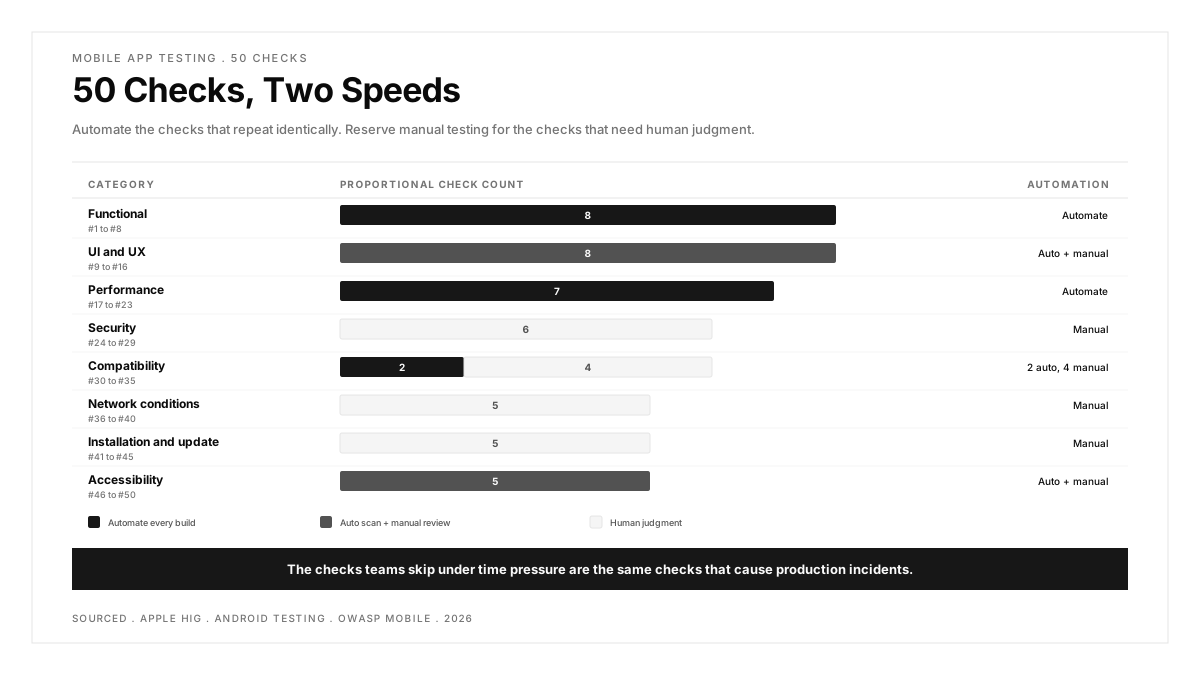
- Automate the checks that repeat identically every release. Reserve manual testing for the checks that require human judgment, such as visual appearance and interaction feel.
Functional testing checklist
These checks confirm that the application does what it is supposed to do. They cover the core logic rather than how it looks or how fast it runs.
| # | Check | Pass Criteria |
|---|---|---|
| 1 | Every primary user flow completes end to end | User can register, log in, perform the core action, and log out without errors |
| 2 | Form validation rejects invalid input | Required fields show errors when empty; email, phone and date fields reject malformed values |
| 3 | Error states display meaningful messages | Network errors, server errors and validation failures show user-readable messages rather than raw codes |
| 4 | Navigation between all screens works | Every button, tab and link reaches the intended screen; the back button returns to the previous screen |
| 5 | Deep links open the correct screen with correct data | Links from push notifications, emails and external sources resolve to the right content |
| 6 | Search returns relevant results and handles empty queries | Results match the query; empty queries show a clear prompt or recent searches rather than a crash |
| 7 | Interrupted flows resume correctly | A user returning after a phone call, app switch or lock screen finds their progress preserved |
| 8 | Logout clears session data | After logout, navigating to a protected screen redirects to login; cached user data does not persist |
For a deeper walkthrough of how to test a mobile app end to end, that guide covers the methodology behind these checks.
UI and UX testing checklist
These checks confirm that the application looks and feels correct on screen. Visual correctness and interaction smoothness sit here.
| # | Check | Pass Criteria |
|---|---|---|
| 9 | Text does not clip, truncate or overlap on any supported screen size | Content displays fully on the smallest and largest supported devices |
| 10 | Touch targets meet minimum size guidelines | Buttons and links are at least 44x44 points (iOS) or 48x48 dp (Android) |
| 11 | Keyboard does not obscure active input fields | The screen scrolls or adjusts to keep the focused field visible above the keyboard |
| 12 | Orientation changes preserve state | Rotating from portrait to landscape does not reset form inputs or navigation position |
| 13 | Dark mode renders all text legibly | No white text on white background or dark text on dark background in any screen |
| 14 | Animations complete without dropped frames | Transitions and loading animations run smoothly at 60 fps on midrange devices |
| 15 | Empty states display a clear message or prompt | Screens with no data show guidance rather than a blank white screen |
| 16 | Gesture interactions (swipe, pinch, long press) behave predictably | Gestures trigger the documented action and do not conflict with system gestures |
Mobile UI testing covers the tools and approaches for catching visual regressions before users see them.
Performance testing checklist
These checks confirm that the application runs within acceptable speed and resource constraints on real hardware.
| # | Check | Pass Criteria |
|---|---|---|
| 17 | Cold start completes within 2 seconds on a midrange device | Time from tap to interactive screen measured on a device released in the past 2 years |
| 18 | Screen transitions complete within 300ms | Navigation between screens does not produce a visible delay or blank frame |
| 19 | Memory usage stays stable during extended use | A 10 minute session does not show a rising memory baseline (indicates a leak) |
| 20 | Battery consumption stays within expected range | The app does not appear in the device's battery usage warnings after normal use |
| 21 | Large lists scroll at 60 fps | Lists with 100 or more items render smoothly without jank on midrange hardware |
| 22 | Background processes do not drain resources | The app in the background does not consume CPU, make network calls, or keep GPS active unless required by a declared feature |
| 23 | Cached data does not grow unbounded | After a week of use, the app's storage footprint remains under a reasonable ceiling for its category |
Mobile app performance testing covers the tools and methodologies for measuring these metrics at scale.
Security testing checklist
These checks confirm that the application protects user data and resists common attack patterns.
| # | Check | Pass Criteria |
|---|---|---|
| 24 | Sensitive data is not stored in plain text on the device | Tokens, passwords and personal information use the platform's secure storage (Keychain on iOS, Keystore on Android) |
| 25 | Network traffic uses TLS for all API calls | No HTTP calls; certificate pinning enforced where applicable |
| 26 | Authentication tokens expire and refresh correctly | Expired tokens redirect to login; refresh tokens generate new access tokens without user action |
| 27 | Input fields resist injection attacks | SQL injection, XSS, and path traversal payloads in text fields return validation errors rather than executing |
| 28 | Screenshots and app previews do not expose sensitive data | The app switcher preview and screenshots obscure sensitive fields (account numbers, passwords) |
| 29 | Root and jailbreak detection works where required | On rooted or jailbroken devices, the app warns the user or restricts sensitive operations according to the security policy |
Mobile app security testing covers the OWASP Mobile Top 10 and the tools that automate these checks.
Compatibility testing checklist
These checks confirm that the application works across the range of devices, OS versions and form factors the team supports.
| # | Check | Pass Criteria |
|---|---|---|
| 30 | The app runs on the minimum supported OS version | No crashes, missing features or layout breaks on the oldest declared OS version |
| 31 | The app runs on the latest OS version | The latest stable OS release does not introduce regressions |
| 32 | Layout renders correctly on small screens (under 5 inches) | No clipped content, overlapping elements or inaccessible controls |
| 33 | Layout renders correctly on large screens and tablets | Content scales or reflows rather than stretching; navigation remains usable |
| 34 | The app works across manufacturers with custom OS skins | Samsung One UI, Xiaomi MIUI, and other vendor modifications do not break core functionality |
| 35 | Permissions dialogs display correctly and handle denial | The app requests permissions at the right moment, explains why, and degrades gracefully when the user denies |
Compatibility testing is the layer most teams underfund. That guide covers how to prioritize devices when you cannot test every combination.
Network condition testing checklist
These checks confirm that the application handles the range of network conditions real users encounter, not just the stable Wi-Fi in the office.
| # | Check | Pass Criteria |
|---|---|---|
| 36 | The app handles complete loss of connectivity | Offline state displays a clear message; data entered offline does not vanish on reconnect |
| 37 | The app recovers from a connectivity drop mid-request | A request interrupted by a network change retries or shows an actionable error |
| 38 | The app functions on slow connections (2G, 3G) | Core features remain usable on throttled connections; images and media load progressively rather than blocking the UI |
| 39 | Switching between Wi-Fi and mobile data does not break sessions | The transition does not log the user out, reset navigation, or drop pending uploads |
| 40 | API timeouts display user-readable errors | A server that does not respond within the timeout window produces a message the user can act on, not a frozen screen |
Installation and update testing checklist
These checks confirm that users can get the app on their device and that updates do not destroy their data.
| # | Check | Pass Criteria |
|---|---|---|
| 41 | Fresh install completes without errors | The app downloads, installs and opens on a device that has never had it |
| 42 | Update from the previous version preserves user data | A user updating from version N-1 to N retains their login, preferences and local data |
| 43 | Update from two or more versions back preserves data | A user skipping one or more versions still migrates cleanly to the latest version |
| 44 | Uninstall removes all app data from the device | No residual files, databases or cached data remain after the user uninstalls the app |
| 45 | The app works correctly after a force stop and restart | Force-stopping the app and reopening it does not produce a crash or corrupted state |
Accessibility testing checklist
These checks confirm that users with disabilities can use the application. Accessibility is a quality requirement, not an optional enhancement.
| # | Check | Pass Criteria |
|---|---|---|
| 46 | Every interactive element has an accessibility label | Screen readers (VoiceOver on iOS, TalkBack on Android) announce each button, link and input field with a descriptive label |
| 47 | The app is fully navigable with a screen reader | A user relying solely on VoiceOver or TalkBack can complete every primary flow |
| 48 | Text scales with the system font size setting | Increasing the device's font size to the maximum setting does not break layout or hide content |
| 49 | Color is not the sole indicator of state | Error states, required fields and status indicators use icons, text or patterns in addition to color |
| 50 | Focus order follows a logical reading sequence | Tabbing or swiping through elements moves in the order a user would expect, not in DOM or z-index order |
Accessibility heuristics covers the evaluation framework for auditing accessibility without relying solely on automated scanners.
How to use this checklist
Before every release: Run the full list against the release candidate build. Mark each item pass, fail or not applicable. A major release should have zero failures and justified reasons for every item marked not applicable.
Before a hotfix: Run the functional checks (1 through 8) and the checks related to the changed area. A hotfix touching the payment screen does not need a full compatibility sweep, but it does need checks 1, 2, 3, 5, 7 and the security checks around payment data.
After a production incident: Add a new check that would have caught the issue. The checklist is a living document that improves with every incident it learns from.
Automation priority: Items 1 through 8 (functional), 17 through 23 (performance metrics), and 30 through 31 (OS version compatibility) are the strongest candidates for automation. Items 9 through 16 (UI and UX) and 46 through 50 (accessibility) benefit from a combination of automated scans and manual review.
Teams already using test automation for regression suites can integrate many of these checks into their existing pipeline. The items that require human judgment, such as animation smoothness and gesture feel, remain manual.
.png)
FAQs
How long does it take to run a full mobile testing checklist?
A full 50-point checklist takes 4 to 8 hours of manual testing for a single device. The range depends on the size of the application and the number of user flows. Automating the functional and performance checks reduces the manual portion to the UI, accessibility and exploratory items, which typically take 2 to 3 hours.
Should I test on real devices or emulators?
Both, for different reasons. Emulators are fast and free for functional checks during development. Real devices are necessary for performance, battery, touch accuracy and hardware-specific behavior. The compatibility checks (30 through 35) require real devices because emulators do not replicate manufacturer-specific OS modifications.
What is the minimum number of devices to test on?
A practical floor for most consumer apps: one recent iPhone (latest iOS), one older iPhone (iOS minus two), one recent Android flagship (stock Android), one midrange Android with a manufacturer skin (Samsung or Xiaomi), and one tablet if the app supports tablets. That covers the four most common failure patterns: latest OS regressions, older OS compatibility, Android fragmentation and form factor variation.
How do I prioritize when there is not enough time to test everything?
Run the functional checks (1 through 8) and the checks related to the area that changed. Then run the compatibility checks on the two most popular devices in your analytics. Finally, run a single pass of the accessibility checks. If time remains, add performance and security. The checks most often skipped under pressure, interrupted flows (7) and update migration (42 through 43), are also the checks most likely to cause a production incident.
Should the checklist change for iOS and Android?
The categories and checks stay the same. The pass criteria differ for platform-specific items: secure storage is Keychain on iOS and Keystore on Android; minimum touch targets are 44pt on iOS and 48dp on Android; the app switcher behavior differs between platforms. Maintain one checklist with platform-specific notes on the items that differ.
How do I handle checklist items that keep failing?
A check that fails on every release is a check pointing at a systemic issue rather than a one-time bug. Track which items fail most frequently across releases. If dark mode legibility (13) fails three releases in a row, the fix is a design system constraint that prevents the problem at the component level rather than a manual catch at release time.