Mobile App Crash Testing: How to Find Crashes Before Your Users Do
How to test mobile apps for crashes before release. Covers monkey testing, low memory simulation, network interruption, rapid state changes and crash reproduction techniques for iOS and Android.
YS
Yuvan Sundrani · 12 min read
autosana.ai
Mobile app crash testing is the practice of deliberately subjecting an application to conditions that cause failures (memory pressure, network loss, rapid input, corrupted state) so that crashes are discovered during development rather than in production. Unlike functional testing, which verifies correct behavior under normal conditions, crash testing verifies that the app does not terminate unexpectedly under abnormal conditions.
The distinction matters because most crashes happen on paths that no one designed. An out of memory condition while the camera is active and a push notification arrives simultaneously. A force close during a database write. A network timeout at the exact moment the app transitions between activities. These compound failures are invisible in functional test suites because the suites test what the app should do, not what happens when the device itself becomes hostile.
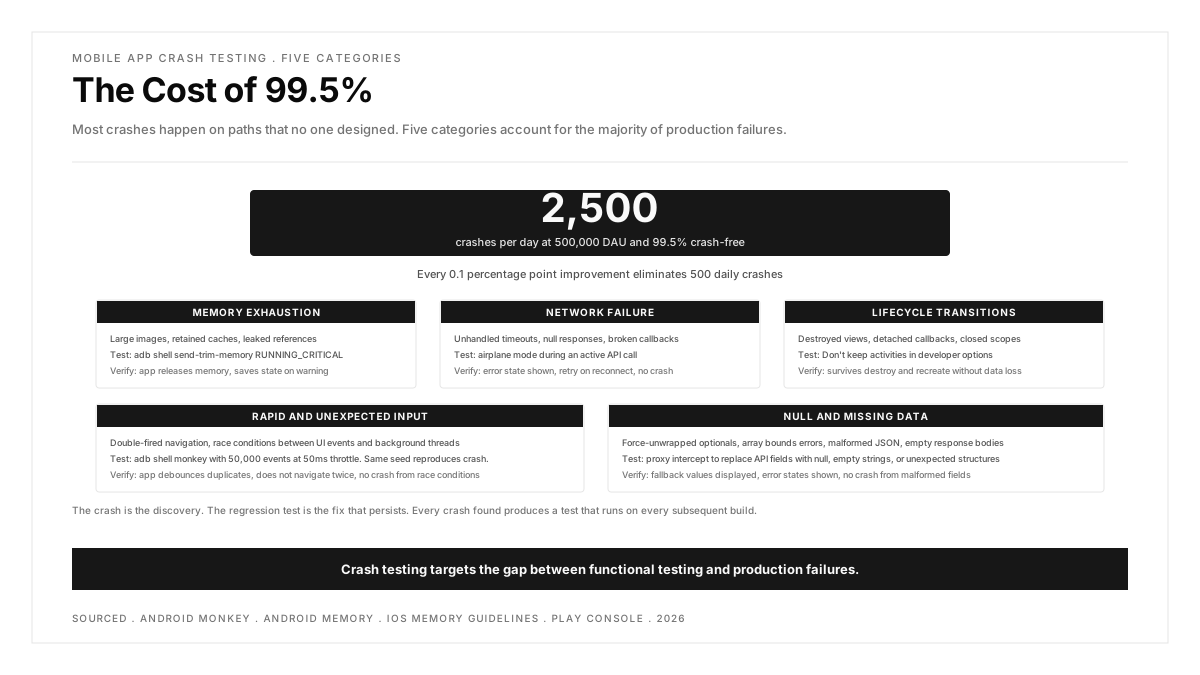
A 99.5% crash-free rate sounds acceptable until you calculate the absolute number. An app with 500,000 daily active users at 99.5% crash-free experiences 2,500 crashes every day. Every 0.1 percentage point improvement eliminates 500 daily crashes. Crash testing is how teams push that number higher before a release ships.
Key Takeaways
Crash testing targets the gap between functional testing (what the app should do) and production failures (what actually breaks). Most production crashes occur on paths that no functional test covers.
The five crash categories that account for the majority of production failures: memory exhaustion, unhandled exceptions from network failures, state corruption during lifecycle transitions, race conditions from rapid input, and null reference errors from missing data.
Monkey testing (random UI input at high speed) finds crashes that structured tests miss because it explores paths no one thought to write a test for.
Low memory simulation is the single highest value crash test for mobile. Memory pressure on real devices triggers behaviors that emulators do not reproduce accurately.
Every crash found in testing should produce a regression test that prevents the same crash from returning. The crash is the discovery. The test is the fix that persists.
The five crash categories worth testing
Not all crashes have equal impact or equal discoverability. These five categories account for the majority of production crashes in mobile apps, and each requires a different testing approach.
1. Memory exhaustion
The app allocates more memory than the OS allows. On iOS, the system sends a didReceiveMemoryWarning notification and then terminates the app if memory usage does not decrease. On Android, the system kills background processes first and then the foreground app if pressure continues.
Why it crashes: Large images loaded without downsampling, caches that grow without eviction, leaked references that prevent garbage collection, and activities retained after navigation.
How to test it:
On Android, use adb shell am send-trim-memory to simulate memory pressure at different levels:
On iOS, use Xcode's Memory Debugger or Instruments to observe allocation growth during extended use. Trigger the memory warning programmatically in debug builds using UIApplication.shared.performSelector(inBackground: #selector(UIApplication._performMemoryWarning)) (debug only, not for production).
What to verify: The app releases memory when warned (caches clear, large objects deallocate) and does not crash. If the app cannot reduce memory enough, it should save state before the OS terminates it so the user can resume.
2. Network failure during operations
The network drops while the app is in the middle of a request, a file upload, a sync operation, or an authentication flow.
Why it crashes: Unhandled timeout exceptions, force-unwrapped optional responses (Swift), unchecked null responses (Kotlin), and callback chains that assume every step succeeds.
How to test it:
Enable airplane mode during an active API call
Switch between Wi-Fi and cellular during a file upload
Use a network conditioning tool (Charles Proxy or Android's network profiler) to inject 100% packet loss after the request starts but before the response arrives
Throttle the connection to 2G speed and attempt operations that assume broadband
What to verify: The app displays an error state, does not crash, and retries or recovers when connectivity returns. Partial data (a half-completed upload, a partially written database row) is cleaned up or resumable.
3. Lifecycle transitions under load
The OS interrupts the app with an incoming call, a split-screen resize, a configuration change (rotation), or a memory-triggered background kill while the app is performing work.
Why it crashes: Activities or fragments are destroyed and recreated, but the code assumes they persist. A reference to a view that no longer exists, a callback that fires after the fragment is detached, or a coroutine that writes to a closed scope.
How to test it:
On Android, enable "Don't keep activities" in Developer Options. This forces every activity to be destroyed when it leaves the foreground, which exposes every lifecycle bug:
On iOS, simulate a background kill by pressing Home, waiting a few seconds, and then swiping the app away. Relaunch and verify the app restores to the correct state.
Additional scenarios:
Rotate the device during a network call
Trigger a phone call during a payment transaction
Open the app in split-screen mode and resize the window
Lock the device during a long-running operation and unlock after 30 seconds
What to verify: The app survives destruction and recreation without crashing, losing user data, or showing a blank screen. State that was in progress (a form partially filled, a photo selected) is either preserved or clearly communicated as lost.
4. Rapid and unexpected input
The user taps the same button multiple times in rapid succession, swipes during a transition animation, types while the keyboard is being dismissed, or performs gestures faster than the UI framework processes them.
Why it crashes: Double-fired navigation pushes a screen twice, causing a duplicate key error or a stack corruption. A tap on a recycler view item during a layout update accesses an index that no longer exists. An event handler runs on a background thread and modifies UI state without dispatching to the main thread.
How to test it:
Monkey testing (automated random input) is the most effective technique for this category. On Android:
This sends 50,000 random touch events, gestures, and system events at 50ms intervals. The output logs every crash with a stack trace.
On iOS, Xcode's UI Testing framework can send rapid taps programmatically, and third-party tools like Chaos Monkey provide random interaction testing.
Manual rapid input tests:
Tap a submit button five times in one second
Swipe back during a push navigation animation
Pull to refresh while a previous refresh is still loading
Tap a list item while the list is scrolling
What to verify: The app debounces or ignores duplicate inputs, does not navigate twice, and does not crash from race conditions in UI state.
5. Null and missing data
The app receives data it did not expect: a null field where a value was required, an empty array where at least one item was assumed, a malformed date string, or a response in a format the parser does not handle.
Why it crashes: Force-unwrapping optionals in Swift, non-null assertions in Kotlin, array index access without bounds checking, and JSON parsing without validation.
How to test it:
Use a proxy (Charles, mitmproxy) to intercept API responses and replace fields with null, empty strings, or malformed values
Remove required fields from the response entirely
Return a 200 status code with an empty body
Return valid JSON with an unexpected structure (array where object was expected)
What to verify: The app handles every missing or malformed field gracefully. Gracefully means displaying a fallback value, showing an error state, or skipping the malformed item rather than crashing. The null case is not a theoretical concern: APIs change, backends have bugs, and network corruption modifies payloads.
Monkey testing: finding what structured tests miss
Monkey testing sends random UI events (taps, swipes, rotations, text input, system events) to the app at high speed. It is not intelligent. It does not follow test plans or verify business logic. Its value is precisely that it explores paths no one thought to test.
Android Monkey is built into the platform via adb shell monkey. The key parameters:
--throttle 50: 50ms between events (fast enough to find race conditions, slow enough for the app to process some events)
-v: verbosity (use -v -v -v for maximum detail in crash logs)
--pct-touch 40 --pct-motion 20 --pct-nav 20: control the distribution of event types
-s <seed>: reproducible random sequences (same seed produces same events)
A typical configuration runs 100,000 events overnight on a CI build. Any crash produces a stack trace in the log and a seed value that reproduces the exact sequence.
What monkey testing finds that structured tests do not:
Crashes from rapid state transitions (back button during animation, rotation during dialog)
Race conditions between UI events and background threads
Layout exceptions from unexpected view states
Memory leaks from rapid screen creation and destruction
Monkey testing complements functional testing rather than replacing it. Functional tests verify the app does the right thing. Monkey testing verifies the app does not crash while doing anything at all.
Crash testing on real devices vs emulators
Emulators and simulators reproduce most crash conditions accurately, with three important exceptions.
Memory behavior differs. Emulators typically have access to the host machine's memory, which means the out of memory conditions that crash real devices with 2 GB of RAM do not occur in emulators running on 16 GB laptops. Memory pressure testing must run on real devices to be meaningful.
Thermal throttling is absent on emulators. A real device under sustained CPU load throttles performance, which changes timing and can trigger crashes from timeout conditions that never occur in the emulator's unthrottled environment.
Hardware interrupts are simulated imperfectly. An incoming phone call, a Bluetooth disconnection, or a camera permission revocation behaves differently on a real device than in a simulated environment. The emulator may allow states that the real OS prevents, or prevent states that the real OS allows.
For crash testing specifically, the recommendation is to run monkey testing and lifecycle testing on real devices and reserve emulators for null data testing and network failure testing, which both reproduce accurately in emulated environments.
Building a crash regression suite
Every crash discovered in testing or production should produce a test that prevents its return.
The pattern:
A crash is discovered (via monkey testing, crash reporting, or user report)
The stack trace identifies the code path
A test is written that reproduces the condition (the specific device state, data shape, or timing that triggered the crash)
This feedback loop means the test suite grows in the exact places where the app has historically been fragile. Over time, the crash regression suite becomes the most valuable part of the test suite because every test in it represents a real failure that real users experienced.
Teams running mobile test automation can integrate crash regression tests into the CI pipeline so that a previously fixed crash that reappears blocks the build before it reaches QA.
Crash testing in the release pipeline
Crash testing fits between functional testing and release approval.
Unit and integration tests pass (build is functionally correct)
Crash regression suite passes (previously fixed crashes have not returned)
Release candidate is approved
The crash testing stage adds 30 to 60 minutes for a monkey run of 100,000 events plus targeted crash scenario tests. For teams deploying daily, this runs as a nightly job that gates the morning release candidate.
For a complete view of what to verify before a release, including crash testing as one component, the mobile app performance testing guide covers the broader performance verification process.
FAQs
What is the difference between crash testing and stress testing?
Crash testing targets conditions that cause the app to terminate unexpectedly: memory exhaustion, unhandled exceptions, null reference errors and lifecycle violations. Stress testing pushes the app's performance boundaries without necessarily causing crashes: high concurrent user counts, large data volumes, sustained CPU load. A stress test that causes a crash has found a crash bug. A stress test that causes slowness but no crash has found a performance bug. Both are valuable, but they target different defects.
How many monkey testing events should I run?
Start with 50,000 events for a quick validation (approximately 15 minutes). Run 100,000 to 500,000 events for a thorough overnight pass. The optimal number depends on the app's screen count and interaction complexity. An app with 5 screens reaches good coverage at 50,000 events. An app with 50 screens needs 200,000 or more to reach the same paths. Use the -s (seed) flag to reproduce any crash and increase the count until runs complete without new crashes.
Can crash testing be automated in CI?
Yes. Android Monkey runs from the command line and returns a non-zero exit code on crash, which integrates directly with any CI system. The pipeline step runs adb shell monkey against a debug build on an emulator or connected device, captures the log, and fails the build if a crash occurs. On iOS, XCTest UI tests can simulate rapid interaction and lifecycle events. Memory pressure and network failure tests require scripting but are automatable with tools like Charles Proxy (for network manipulation) and Xcode's memory simulation.
Which devices should I prioritize for crash testing?
Prioritize devices with the least memory (typically entry-level Android devices with 2 to 3 GB of RAM), the oldest supported OS version, and the device models with the highest crash rates in your production monitoring data. Memory-constrained devices expose out of memory crashes that mid-range and flagship devices never trigger. Monitoring data from compatibility testing reveals which device and OS combinations produce the most failures.
What crash-free rate should I target?
Google Play Console flags apps with a crash rate above 1.09% (user-perceived crash rate) as having bad behavior, which can affect store visibility. Apple does not publish a threshold but uses crash data in App Store search ranking. Industry benchmarks for well-maintained apps are 99.5% to 99.9% crash-free. New releases typically dip below the baseline and recover as hotfixes ship. The goal of crash testing is to keep that dip as small as possible by finding crashes before the release reaches production.
How do I reproduce a crash found by monkey testing?
Use the seed value. Running adb shell monkey -s 12345 -p com.example.myapp 50000 with the same seed and event count produces the same sequence of random events. If the crash occurred at event 35,000, the sequence will reproduce it. Capture the full log during the initial run, identify the event number where the crash occurred, and use the seed to replay. For complex crashes, reduce the event count progressively until you find the minimum sequence that triggers the failure.

.png)