
How to Inspect Element on Mac, Windows, iPhone and Android
Open developer tools in Safari, Chrome, Firefox and Edge, on Mac and Windows, plus how to inspect a page running on a real iPhone or Android phone.
Gautam · 13 min read
autosana.ai
Inspect Element opens a panel showing the HTML, CSS, JavaScript and network traffic behind any page. You can read the code, edit it temporarily, and see exactly why something looks or behaves the way it does.
One shortcut covers almost everything. On Mac press ⌘ + ⌥ + I. On Windows press F12 or Ctrl + Shift + I. That opens developer tools in Chrome, Firefox and Edge immediately, and in Safari once you have switched the feature on.
Safari is the only browser here that needs setup first. Everything else works out of the box.
Chrome, Edge and Firefox: no setup needed
All three behave the same way, and each maintains its own reference documentation: Chrome DevTools, Firefox DevTools and Microsoft Edge DevTools.
| Action | Mac | Windows |
|---|---|---|
| Open developer tools | ⌘ + ⌥ + I | F12 or Ctrl + Shift + I |
| Open and pick an element | ⌘ + ⌥ + C | Ctrl + Shift + C |
| Open the Console directly | ⌘ + ⌥ + J | Ctrl + Shift + J |
You can also right-click anything on a page and choose Inspect, which opens the panel with that element already selected. That is usually the fastest route.
Menu paths, if the shortcut is taken by another application:
- Chrome and Edge: View, then Developer, then Developer Tools
- Firefox: the hamburger menu, then More Tools, then Web Developer Tools
Firefox has one advantage worth knowing. Its Inspector surfaces CSS Grid and Flexbox overlays more prominently than the others, drawing grid lines, area names and flex sizing straight onto the page. For debugging a layout that collapses at a certain width, it is often the fastest of the three.
Safari on Mac: switch on developer features first
Safari hides developer tools behind a setting, and Apple has renamed and moved it.
- Open Safari
- From the Safari menu choose Settings, or Preferences on older versions
- Open the Advanced tab
- Tick Show features for web developers
A Develop menu now appears in the menu bar and stays there. You only do this once.
Then use ⌘ + ⌥ + I for the Web Inspector, ⌘ + ⌥ + C to open it in element-picking mode, or right-click and choose Inspect Element.
Two naming changes catch people out. The checkbox used to read "Show Develop menu in menu bar" and now reads "Show features for web developers". Apple also moved Safari's settings under Settings, then Apps, then Safari on recent macOS releases, where older versions listed Safari directly. Same setting, different route.
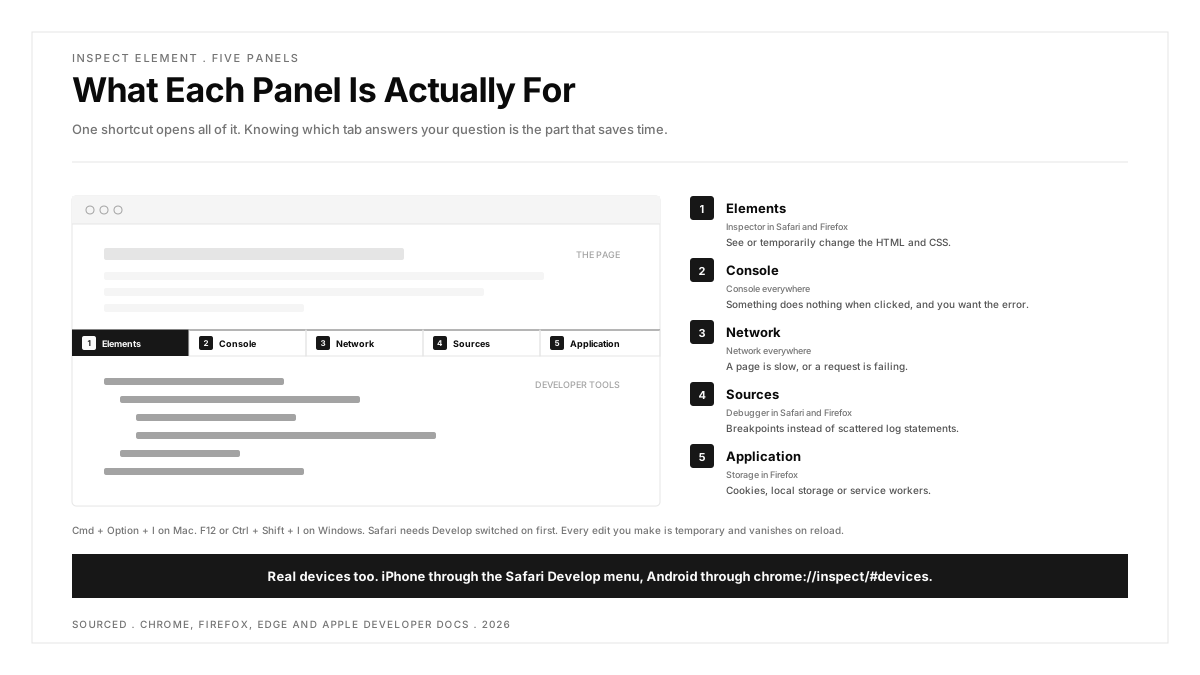
What each panel is for
| Panel | Called | Use It When |
|---|---|---|
| Elements | Inspector in Safari and Firefox | You want to see or temporarily change the HTML and CSS |
| Console | Console | Something does nothing when clicked, and you want the error |
| Network | Network | A page is slow, or a request is failing |
| Sources | Debugger in Safari and Firefox | You want breakpoints instead of scattering log statements |
| Application | Storage in Firefox | You need cookies, local storage or service workers |
Edits are temporary. Anything you change in the Elements panel lives in your browser only and disappears on reload. You cannot alter a live website for anybody else, which is worth saying because it is the single most common misunderstanding about this tool.
How to inspect a page running on a real iPhone
This is the part most guides cover badly, and Apple documents it properly.
Apple's own documentation is clear about the scope. From a Mac you can inspect webpages, service workers, Home Screen web apps, browser extensions and content inside apps, on both real devices and simulators.
- On the iPhone or iPad, open Settings, then Safari, then Advanced, and turn on Web Inspector
- Connect the device to your Mac with a cable
- Trust the Mac if the device prompts you, otherwise it will never appear
- On the Mac, open Safari and click Develop in the menu bar
- Find your device in the list, expand it, and click the tab you want
To do it wirelessly afterwards: with Web Inspector already enabled and the device connected by cable once, choose Connect via Network from the device's submenu in the Develop menu. You can also connect through Xcode.
For a Home Screen web app, bring it to the foreground on the device and look under the Home Screen Web Apps section near the bottom of the Develop menu.
How to inspect a page running on a real Android phone
Chrome handles this through one special address.
- On the phone, open Settings, then About phone, and tap Build number seven times to unlock Developer options
- In Developer options, turn on USB debugging
- Connect the phone to the computer and accept the debugging prompt on the phone
- On the computer, open Chrome and go to chrome://inspect/#devices
- Your device appears with its open tabs. Click inspect next to one
The panel that opens is full Chrome DevTools, pointed at a page rendering on real hardware. Google documents the whole flow, including port forwarding for local servers, under remote debugging Android devices.
Six things most guides skip
1. Freeze a hover state. Tooltips and dropdowns vanish the moment your cursor leaves the page. In the Elements panel, right-click the element and use Force State in Chrome or the :hov button in Firefox, then tick :hover. Works for :focus, :active and :visited too.
2. Simulate a phone viewport. ⌘ + ⇧ + M in Chrome on Mac, Ctrl + Shift + M on Windows, toggles device mode. Safari uses Responsive Design Mode at ⌘ + ⌃ + R. Useful for layout, and no substitute for a real device, because touch behaviour, real GPU rendering and device quirks are not simulated. That distinction is worth understanding properly, and we cover it in emulators versus real devices.
3. Throttle the network. In the Network tab, change the throttling dropdown to Slow 3G. Images that take eight seconds, requests that time out and layout shifts all become visible immediately.
4. Find hidden elements. Press ⌘ + F or Ctrl + F inside the Elements panel and search for display: none. Elements present in the DOM but invisible on screen are a frequent cause of "the button is there but I cannot click it".
5. Pause the page on a timer. Some elements disappear before you can select them. In the Console, run setTimeout(() => { debugger; }, 3000), then trigger the state. Three seconds later everything freezes in place.
6. Copy every computed style. Right-click an element in the Elements panel and choose Copy, then Copy styles. You get the full computed CSS rather than guessing from the stylesheet.
Troubleshooting
"Inspect Element" is missing from Safari's right-click menu. Developer features are off. Safari, Settings, Advanced, tick Show features for web developers.
The keyboard shortcut does nothing. Another application has claimed it, or you are not in a browser window. Right-click and choose Inspect instead.
The right-click menu is disabled on this site. The page has blocked the context menu with JavaScript. The keyboard shortcut and the menu path both still work, because they are browser features rather than page features.
My iPhone does not appear in the Develop menu. Web Inspector is off on the device, or you have not trusted the Mac. Check both, then unplug and reconnect. Apple covers the wireless variant and simulators in the same document.
Hovering the HTML does not highlight anything. The content is inside an iframe or a shadow DOM. Select the element directly in the tree, and for iframes switch the document context in the panel.
My changes vanished. They were always going to. Elements panel edits are local and reset on reload.
Why testers live in this panel
Inspect Element is a debugging tool first and a testing tool second, and the second use is the one that pays.
The Network tab tells you whether a failure came from the interface or the API behind it. The Console shows the error a user never sees. The Elements panel gives you the selectors an automated test will depend on, which is also how you learn that a selector built on a generated class name will break next deploy. That is the daily work of mobile UI testing, and the same panel is where accessibility problems surface first, which our guide to accessibility heuristics goes into properly.
The honest limit is that none of it scales. Inspecting one page by hand is excellent for diagnosing a single bug and useless for checking two hundred screens before a release, which is where automated end-to-end testing takes over. If you are at that point, start with how to test a mobile app and real device testing.
.png)
Frequently asked questions
What is the shortcut to inspect element?
⌘ + ⌥ + I on Mac and F12 or Ctrl + Shift + I on Windows. To open the panel with the element picker already active, use ⌘ + ⌥ + C or Ctrl + Shift + C.
How do I inspect element on a Mac?
Press ⌘ + ⌥ + I in Chrome, Firefox or Edge, or right-click and choose Inspect. In Safari, first open Safari, Settings, Advanced and tick Show features for web developers, then the same shortcut works.
Can I inspect element on an iPhone directly?
Not on the phone itself. Enable Web Inspector in Settings, Safari, Advanced, connect the phone to a Mac, and use the Develop menu in Safari on the Mac. You can then inspect webpages, service workers, Home Screen web apps and content inside apps.
Does editing HTML in the Inspector change the real website?
No. Changes apply only to the copy of the page in your browser and disappear on reload. Nobody else sees them and the server is untouched.
Why is there no Inspect option when I right-click?
Either developer tools are switched off, which is the default in Safari, or the page has disabled the right-click menu in JavaScript. The keyboard shortcut works in both cases.
How do I inspect an Android phone from my computer?
Enable Developer options by tapping Build number seven times, turn on USB debugging, connect the phone, then open chrome://inspect/#devices in Chrome on the computer and click inspect next to the tab you want.