
How to Allow Pop-ups on iPhone: Safari, Chrome and Firefox
Turn off the pop-up blocker on iPhone in Safari, Chrome and Firefox, why Safari has no per-site exception, and what to do when a button still does nothing.
Gautam · 9 min read
autosana.ai

Your iPhone blocks pop-ups by default, which is usually correct. Occasionally it is the reason a site appears broken.
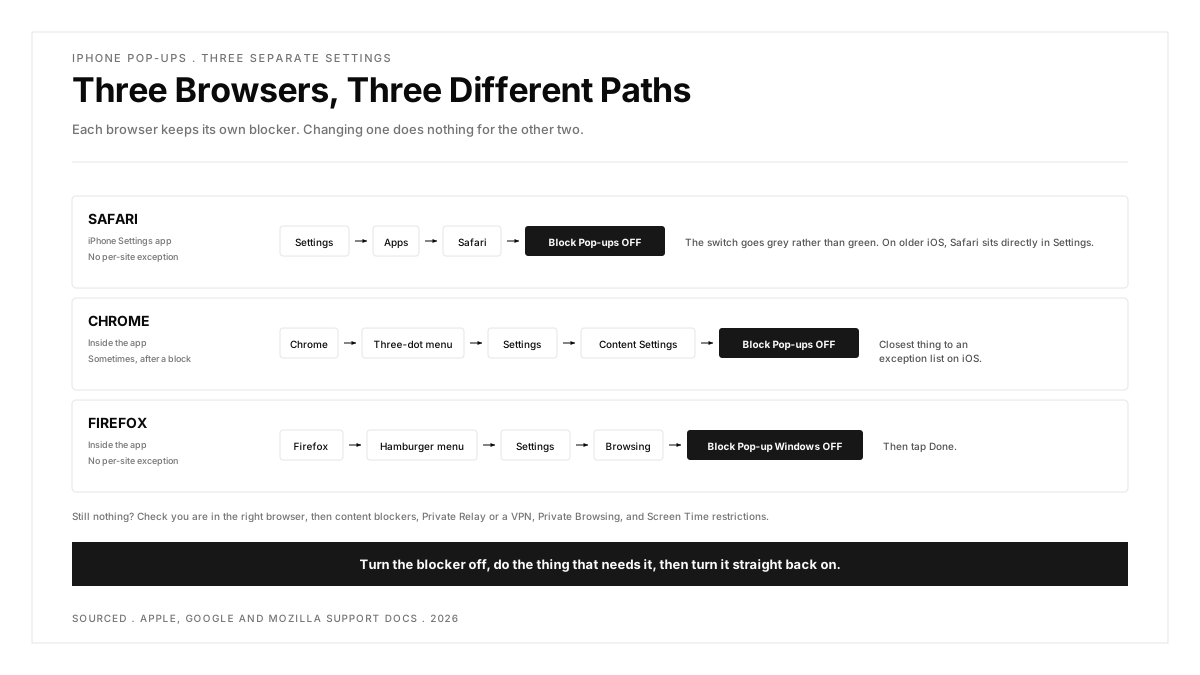
The fastest fix, for Safari: open Settings, tap Apps, tap Safari, and turn Block Pop-ups off. That is Apple's own documented path. Chrome and Firefox keep their own separate settings inside each app, so changing Safari changes nothing for them.
When a blocked pop-up is actually your problem
You rarely want pop-ups. You occasionally need them, and the symptom is always the same: you tap a button and nothing happens at all.
- Banking. Transfer confirmations, secure login portals and verification steps often open in a new window
- Online exams and proctoring. The test itself frequently opens as a pop-up, so Start Exam appears dead
- Government and tax portals. Receipts, PDFs and submission confirmations, on systems built long ago
- Single sign-on. Log in with Google or Microsoft can open the authentication window as a pop-up
- Support chat. Some live chat widgets open in their own window
- Print and download dialogs. A few sites still route these through a new window
- Older web apps on mobile. Anything built before responsive design was standard, which is also why mobile UI testing catches this class of bug and desktop checks do not
If the screen flickers and returns to where it was, that is a blocked window rather than a broken button.
Safari on iPhone
Safari's blocker lives in the iPhone Settings app, not inside Safari. Apple documents the route alongside the Fraudulent Website Warning toggle, which sits in the same place.
- Open the Settings app
- Tap Apps
- Tap Safari
- Turn Block Pop-ups off, so the switch is grey rather than green
Safari now allows pop-ups on every site.
On older iOS versions the path is shorter. Safari is listed directly in the main Settings list rather than under Apps. Apple moved it into the Apps section in a recent release, so a guide written before that will send you to the right setting by a different route.
Safari on iPhone has no per-site exception. On a Mac you can allow pop-ups for one site and block the rest. On iPhone it is all sites or none, and Apple has not added per-site control on iOS.
The practical workaround: turn the blocker off, do the thing that needs a pop-up, then turn it straight back on. Fifteen seconds each way, and you stay protected the rest of the time.
Chrome on iPhone
Chrome keeps its own blocker, entirely separate from Safari's, and Google documents it here.
- Open Chrome
- Tap the three-dot menu, bottom right
- Tap Settings
- Tap Content Settings
- Tap Block Pop-ups and turn it off
Chrome has a per-site option Safari lacks. When Chrome blocks a pop-up it often shows a small "Pop-ups blocked" notice at the bottom of the screen. Tap it and choose to always allow, and that one site is permitted while everything else stays blocked. Chrome has to catch the blocked pop-up first, so it does not appear on every site, but it is the closest thing to an exception list on iOS.
Firefox on iPhone
Firefox is independent again, with its own setting documented in Firefox for iOS Help.
- Open Firefox
- Tap the hamburger menu, bottom right
- Tap Settings
- Under Browsing, find Block Pop-up Windows
- Turn it off, then tap Done
Like Safari, Firefox on iOS is all or nothing.
Quick comparison
| Safari | Chrome | Firefox | |
|---|---|---|---|
| Where the setting lives | iPhone Settings app | Inside the app | Inside the app |
| Path | Settings, Apps, Safari | Settings, Content Settings | Settings, Browsing |
| Per-site exceptions | No | Sometimes, after a block | No |
| Affected by other browsers | No | No | No |
Each browser is sealed off from the others. This is the single most common reason people believe the fix did not work: they changed Safari's setting and then went back to Chrome.
The button still does nothing. Now what?
Work through these in order, because the pop-up blocker is only one of several causes.
1. Check the right browser. Changing Safari does nothing for Chrome or Firefox. Confirm which app you are actually in.
2. Look for a one-time prompt. Some sites ask permission the first time. If you tapped Block without reading, clear that site's data and reload.
3. Turn off content blockers. An ad blocker or content blocker extension can swallow the same window. Settings, Apps, Safari, Extensions, then switch them off temporarily.
4. Disable Private Relay or a VPN. Some corporate portals and exam platforms refuse to open their window through one.
5. Try Private Browsing. This rules out a stale cookie or a cached script. If it works there, clear the site's data.
6. Check Screen Time. Settings, Screen Time, Content and Privacy Restrictions can block web content independently of Safari's own blocker, and parents or IT departments often set it and forget it.
7. Use a laptop for that one task. Exam portals and bank transfer flows are frequently built for desktop and tested on nothing else. If it is important and time-bound, this is the reliable answer.
Should you leave pop-ups allowed?
No. Turn the blocker back on when you are finished.
The blocker exists because most pop-ups are advertising, newsletter nags, fake prize messages and scareware claiming your device is infected. None of those become less common because you needed one legitimate window once.
If a site shows aggressive pop-ups you cannot escape, do not interact with them at all, including any close button inside the pop-up itself. Close the tab, then clear that site's data in Settings, Apps, Safari. Apple's own guidance is to avoid interacting with persistent pop-ups, keep your software updated, and read their advice on adware and unwanted software.
Why this keeps happening to the same kinds of sites
Pop-up windows were a mainstream pattern roughly twenty years ago, and the sites still using them are mostly the ones nobody has rebuilt: exam platforms, government portals, legacy banking systems and internal enterprise tools.
Modern sites use a modal, which is an overlay drawn inside the same page. A modal is not a browser window, so no blocker touches it, which is why newer sites never have this problem.
There is a lesson in it for anyone building or testing a site. A flow that depends on a pop-up window fails silently for most mobile users, with no error and no explanation, because the default on every mobile browser is to block it. It is the kind of defect that passes every desktop check and reaches real customers untouched, which is exactly the gap compatibility testing exists to close and why real device testing finds things a desktop browser never will.
If you want to see what the page is actually doing when a window fails to open, the Console will usually say so. Our guide to inspecting a page from your phone covers how to read it from a Mac.
.png)
Frequently asked questions
How do I allow pop-ups on my iPhone?
Open Settings, tap Apps, tap Safari, and turn Block Pop-ups off. For Chrome, open the app, then the three-dot menu, Settings, Content Settings, Block Pop-ups. For Firefox, open the app, the hamburger menu, Settings, Browsing, Block Pop-up Windows.
Why can I not find Safari in my iPhone settings?
Recent iOS versions group app settings together, so Safari sits under Settings, Apps, Safari. On older versions it appears directly in the main Settings list.
Can I allow pop-ups for just one website on iPhone?
Not in Safari or Firefox, which are all sites or none. Chrome sometimes offers it: when it blocks a pop-up, a notice appears at the bottom of the screen and you can choose to allow that site in future.
I turned pop-ups on and the button still does nothing. Why?
Most often you changed the setting in a different browser from the one you are using. After that, check for content blockers, a VPN or Private Relay, and Screen Time content restrictions, which block web content separately from Safari's own blocker.
Is it safe to allow pop-ups on iPhone?
For a short period on a site you trust, yes. Leaving it off permanently exposes you to advertising and scam windows on every site you visit, so turn the blocker back on once you have finished.
Does allowing pop-ups in Safari affect Chrome?
No. Every browser on iOS keeps its own pop-up setting, and they do not affect each other. This is the most common reason the fix appears not to work.