
Localization Testing for Mobile Apps: How to Test Every Language
How to run localization testing for mobile apps: pseudolocales, text expansion, RTL, dates and currency, language vs region vs IP, and automated runs per locale.
- Written by
- Gautam Agarwal
- Read time
- 11 min read
- Published
Quick answer: localization testing checks that your app works and reads correctly in every language and region you ship, by running real journeys with the device set to each locale and checking text, layout, right to left mirroring, dates, numbers, currency, time zones and location based behavior. Translation files prove the words exist. Localization testing proves they fit, read in the right direction and sit beside the right formats.
A translated app is the same person in a new suit. The person stays the same, yet the fit changes everywhere: sleeves run long in German, buttons swap sides in Arabic, and the price tag switches currency. Localization testing is the fitting session.
Key Takeaways
- Start with pseudolocalization: Android's en-XA and ar-XB pseudolocales and Xcode's pseudolanguages expose truncation, hard coded strings and right to left bugs before any translation exists.
- Language, region and IP address are three separate settings: language changes the words, region changes formats, time zone and location, and IP changes what your servers see.
- Test at least one long language, one right to left language and one non Latin script, plus your top revenue markets.
- Check formats with real journeys: dates, numbers, currency, plurals and reminders that depend on the time zone.
- Autosana opens the app in any language and region from the first screen, while your test steps stay in English.
What is localization testing?
Localization testing verifies that a localized app behaves correctly for users in a specific language and region. It sits on top of internationalization, the engineering work that makes localization possible: strings in resource files, layouts that stretch, and formatters that follow the locale.
What can break in a localized app
| Area | What can break |
|---|---|
| Strings | Hard coded English text survives in a translated build |
| Text length | Longer translations truncate, wrap badly or push buttons off screen |
| Direction | Right to left languages keep left to right layouts, icons and swipe directions |
| Formats | Dates, numbers, currency and plurals follow the wrong country |
| Scripts and fonts | Characters render as boxes, or line heights clip accents |
| Input | Names, addresses and phone numbers in local formats fail validation |
| Region logic | Time zones, prices and location based features use the wrong country |
| Notifications and emails | Messages arrive in English, or at the wrong local time |
Language vs region vs IP address
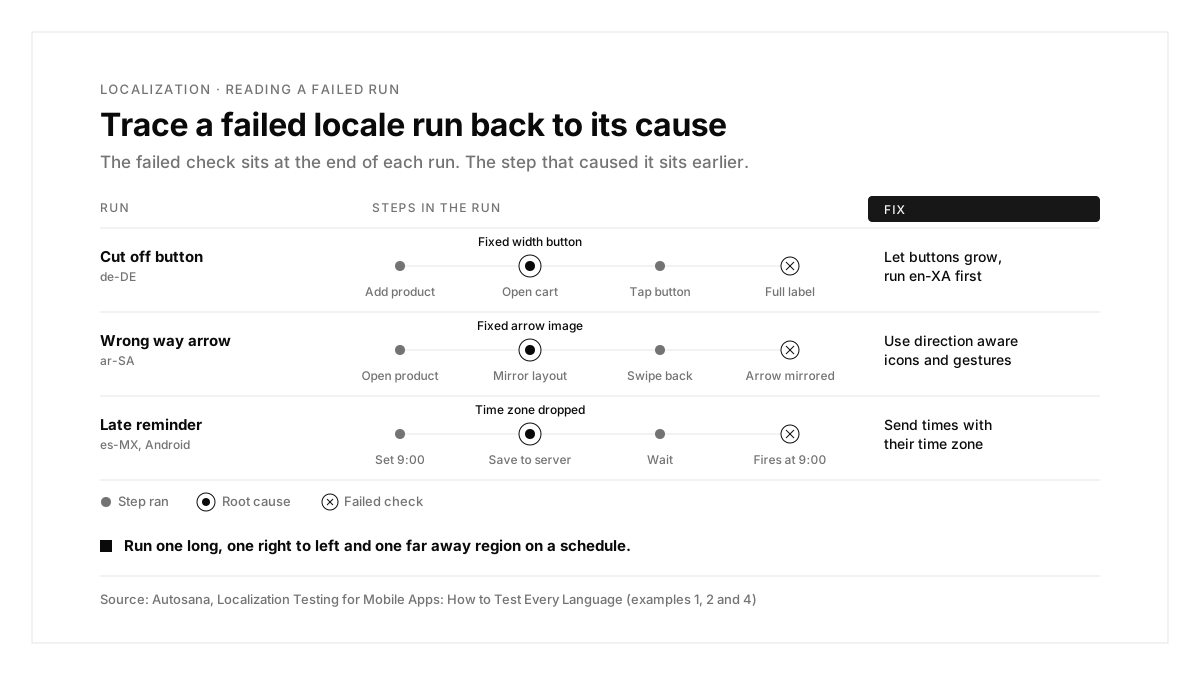
Most localization bugs come from mixing up three settings. Autosana's language and region docs separate them clearly:
| Setting | What it changes | Example |
|---|---|---|
| Language | The words your app shows | German UI text |
| Region | Dates, numbers, money, time zone and device location | en-MX: English text with Mexican formats, time zone and location |
| IP address | The country your servers see | A pricing API that returns Mexican pesos |
Any language works with any region, so English with Mexico as the region is a real and useful test case. A language alone leaves the IP address unchanged; country specific server responses need a proxy location.
Ways to run localization tests
| Method | What it proves | What it skips |
|---|---|---|
| Pseudolocalization | Truncation, hard coded strings and RTL layout, before translation | Real translation quality |
| Native speaker review | Meaning, tone and cultural fit | Repeating on every build |
| Screenshot review per locale | Visual breakage across many screens | Behavior, such as formats inside a flow |
| Code based tests with language and locale settings | Journeys in each locale, in code | Locators that change with each translation |
| Autosana runs per language and region | Journeys in each locale, with steps written once in English | Translation quality judgments |
Start with pseudolocalization
Android
The Android pseudolocales guide describes two built in pseudolocales:
- English (XA) adds accents, expands text and brackets each message, which exposes truncation and messages split into pieces
- AR (XB) switches messages to right to left and reverses their characters, so you can test a right to left layout using only English text
Enable them in debug builds, then pick one in the device's language settings; this guide to Android emulator setup covers getting an emulator ready first:
android {
buildTypes.getByName("debug") {
isPseudoLocalesEnabled = true
}
}
Text that stays plain English in a pseudolocale points to strings hard coded outside your resource files.
iOS
For how native iOS and Android suites fit around this, see this guide to native mobile app testing. Xcode offers pseudolanguages for the same job, including a double length pseudolanguage for text expansion and a right to left pseudolanguage. Apple's guide to preparing your interface for localization covers them alongside layout advice. Its companion page on testing localizations when running your app covers running each language and region you support.
The localization test checklist
| Check | Locale to use | What to verify |
|---|---|---|
| Every main screen | A pseudolocale | Zero hard coded strings, zero truncation |
| Long text | German (de-DE) | Buttons, tabs and table headers fit |
| Right to left | Arabic (ar-SA) | Layout, icons, swipe gestures and progress bars mirror |
| Non Latin script | Japanese (ja-JP) or Chinese (zh-TW) | Characters render and line heights fit |
| Dates and times | en-GB vs en-US | Day and month order, 12 or 24 hour clock |
| Numbers and currency | de-DE, pt-BR | Decimal separators and currency symbols |
| Plurals | Your top languages | "1 item" and "5 items" use the right forms |
| Time zone logic | A region far from your servers | Reminders and deadlines fire at local time |
| Location logic | Each launch country | Store, shipping and content options match the country |
| Checkout | Each paid market | Prices, taxes and payment methods match the market |
| Notifications | Each language | Push and email copy arrive translated, at local hours |
How to automate localization tests with Autosana
Choose a language and region per run
With Autosana: pick Language and Region in the run dialog or the automation editor. Your app opens in that language from its first screen on Android, iOS and web; on web, your site sees the language in the Accept-Language header and in navigator.language.
From the CLI:
autosana flows run --flow checkout --locale de-DE
From the GitHub Action:
```yaml
locale: de-DE
```
With Autosana: the Runs API, build uploads and MCP run tools take a locale value too, and an upload's language applies to every run it starts, including later pull request runs against that build.
Keep your flows in English
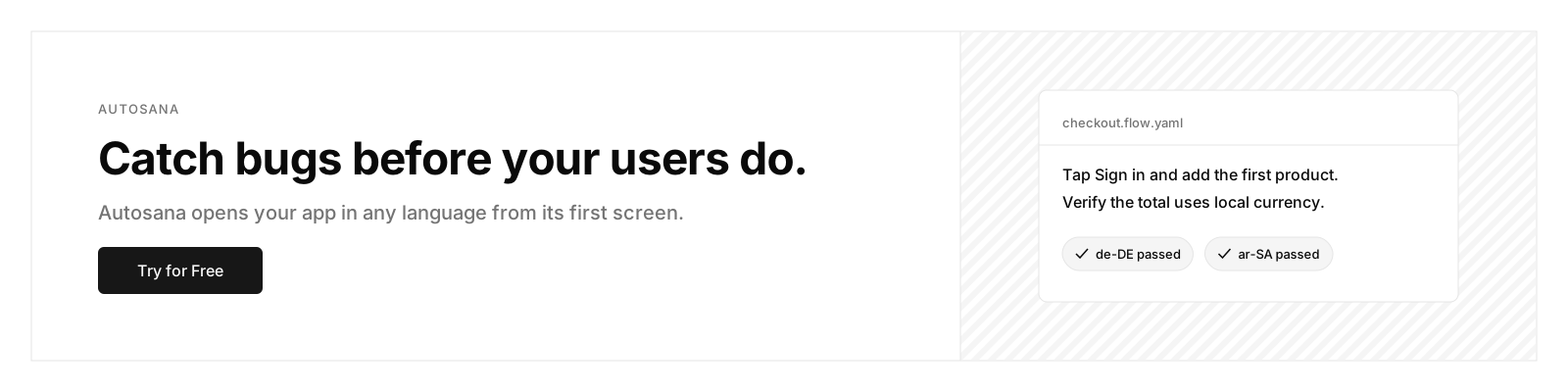
With Autosana: test steps stay in English. Autosana tells the agent the run's language, so a step such as "Tap Sign in" finds Anmelden on a German screen. Text a step asks the agent to type is typed exactly as written, so put German input in German.
Tap Sign in.
Sign in as ${env:DE_TEST_USER}.
Add the first product to the cart.
Verify the total uses euros with a comma as the decimal separator.
Know what each platform changes
With Autosana:
- choosing a language or region also moves the device's GPS location to that country on web, Android and iOS
- the time zone follows the country on web and Android Emulators, while iOS runs keep US Pacific time
- on a physical iPhone, and on an iOS Simulator on your own machine, only your app switches language
- leaving both pickers on Default runs in US English (en-US), and the next run after a language change starts in US English again
- runs are cached per language, so a German run only replays steps recorded in German
Switch language mid journey
With Autosana: to test a language switch inside a flow, write it as a step, such as "Set the device locale to de_DE". An unsupported locale code is refused before the run starts with an Unknown locale error, and a device that refuses a language fails the run before the first step.
Build a locale matrix
Running every flow in every language is expensive. A practical matrix:
| Tier | Locales | When to run |
|---|---|---|
| Every pull request | Your main language | Every change |
| Nightly | One long language, one RTL language, one non Latin script | Scheduled automation |
| Before release | Every shipped language and paid market | Release candidate |
With Autosana: set a language and region on each automation, so a nightly German run and a nightly Arabic run sit side by side on a schedule.
Localization testing examples
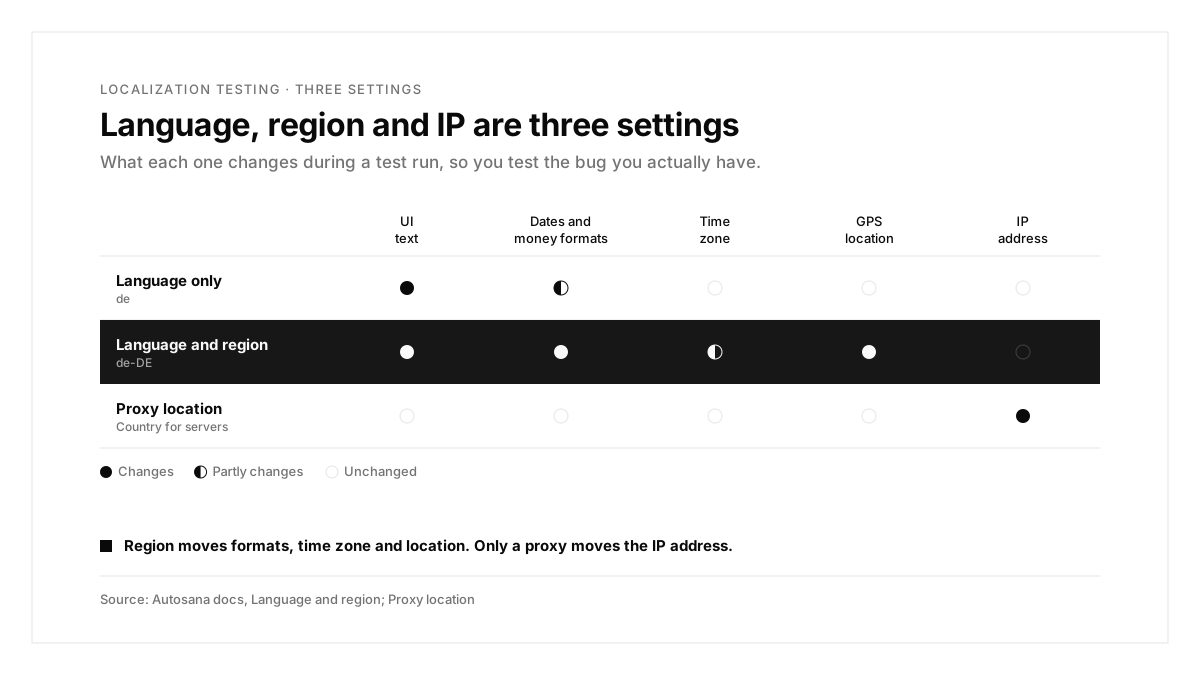
Each example starts from a failing run and traces it to a cause and a fix.
Example 1: The German checkout button is cut off
| Step | Expected | What the de-DE run showed |
|---|---|---|
| Add a product | Cart badge shows 1 | Cart badge shows 1 |
| Open the cart | "Zur Kasse gehen" button | "Zur Kasse..." |
| Tap the button | Checkout screen | Checkout screen, label still cut |
Cause: the button had a fixed width sized for "Checkout".
Fix: let buttons grow with their text, and run the English (XA) pseudolocale on every screen before translations land.
Example 2: The back arrow points the wrong way in Arabic
| Step | Expected | What the ar-SA run showed |
|---|---|---|
| Open a product | Right to left layout | Right to left layout |
| Look at the back button | Arrow points right | Arrow points left |
| Swipe to go back | Swipe follows the mirrored layout | Swipe direction unchanged |
Cause: the arrow was a fixed image and the gesture was hard coded for left to right.
Fix: use direction aware icons and gestures, and keep one right to left locale in the nightly matrix.
Example 3: British users see American dates
| Step | Expected | What the en-GB run showed |
|---|---|---|
| Book a slot on 3 April | Confirmation | Confirmation |
| Read the booking date | 03/04/2027 | 04/03/2027 |
| Read the reminder email | 3 April | April 3 |
Cause: the date format string was hard coded as month first.
Fix: format dates with the platform's locale aware formatter.
With Autosana: run the same booking flow with English as the language and the United Kingdom as the region; any language works with any country.
Example 4: A reminder fires at the wrong local hour
| Step | Expected | What the Android es-MX run showed |
|---|---|---|
| Set a reminder for 9:00 | Saved for 9:00 local | Saved |
| Check the scheduled time | 9:00 Mexico City time | 9:00 server time |
| Wait for the reminder | Fires at 9:00 local | Fires two hours late |
Cause: the app sent the reminder time to the server as a bare clock time, dropping the device's time zone.
Fix: send times with their time zone, or as UTC with the user's zone stored.
With Autosana: a Mexico region run moves the time zone to Mexico City on Android Emulators and web, so this bug shows up in a normal flow.
Common localization testing problems and fixes
| Problem | What to check |
|---|---|
| English text inside a translated build | Hard coded strings; run a pseudolocale |
| Region looks right, server responses look American | IP based logic; add a proxy location |
| iOS run shows the wrong time zone | iOS runs keep US Pacific time; test time zone logic on Android or web |
| A run fails before the first step | An unsupported locale code, or a device that refused the language |
| Typed text appears in English on a German run | Typed text stays exactly as written; write it in German |
The localization testing process, summarized
| Step | What you do | Output |
|---|---|---|
| 1. Prepare | Move strings to resources and use locale aware formatters | An internationalized app |
| 2. Pseudolocalize | Run en-XA, ar-XB and Xcode pseudolanguages | Layout and string fixes before translation |
| 3. Translate | Ship translations with screenshots for context | Localized builds |
| 4. Automate | Run journeys per language and region | Locale coverage on a schedule |
| 5. Review | Have native speakers read key screens | Natural, correct copy |
| 6. Release | Run every shipped locale on the release candidate | A confident global release |
Conclusion
Localization testing proves that every user sees an app made for them: words that fit, layouts that read in their direction, and dates, prices and reminders that match their country. Start with pseudolocales, separate language, region and IP in your thinking, and run real journeys per locale on a schedule.
A good first step this week: enable Android pseudolocales in your debug build, then run your checkout flow in Autosana with de-DE and ar-SA. For notification copy per language, see the guide to push notification testing; for where emulators fit, this guide on emulators vs real devices; for Flutter apps, this guide to Flutter integration testing; and for a wider view of tools, this ranking of mobile app testing tools.
FAQs
What is localization testing for mobile apps?
It checks that the app works and reads correctly in every language and region you ship.
What is pseudolocalization?
Fake translations that lengthen, accent or reverse text to expose layout and string bugs early.
Which languages should you test first?
One long language, one right to left language, one non Latin script, plus top markets.
What is the difference between language and region?
Language changes the words; region changes dates, numbers, money, time zone and location.
Do Autosana flows need translating?
Steps stay in English, and the agent finds the translated text on screen.
How do you test country specific prices?
Set the region for formats, and add a proxy location when servers price by IP address.