
How to Install an APK on an Emulator or Device
How to install an APK on an Android emulator or physical device using ADB, file manager, Android Studio, and the command line. Covers sideloading, permissions, and troubleshooting.
Gautam · 15 min read
autosana.ai
An APK (Android Package Kit) is the file format Android uses to distribute and install applications, containing the compiled code, resources, assets, certificates, and manifest that make up an Android app. Installing an APK outside the Google Play Store is called sideloading, and it is a daily activity for developers, testers, and anyone who needs to run a build that has not been published to the Store.
There are several ways to install an APK: through ADB from the command line, through Android Studio, by transferring the file to the device and opening it, or through a distribution service like Firebase App Distribution. The method depends on whether you are installing on an emulator or a physical device, whether USB debugging is available, and whether the build needs to replace an existing version. This guide covers every method, including the permissions and settings required on the device.
Key Takeaways
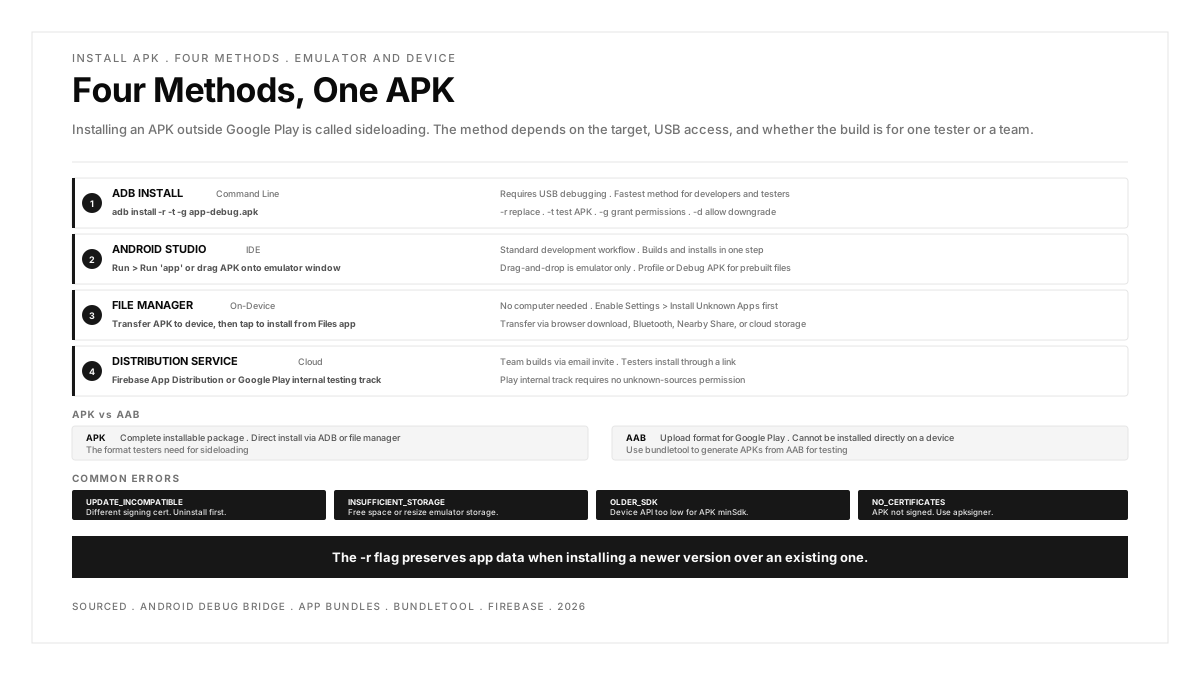
- adb install is the fastest method for developers and testers. It installs an APK on a connected device or running emulator in one command, with flags for replacing existing installations, granting permissions, and allowing downgrades.
- Physical devices require "Install unknown apps" to be enabled for the source delivering the APK (file manager, browser, or a distribution app). Without this permission, Android blocks the installation.
- Emulators accept APK installations through ADB, Android Studio, or drag-and-drop. No additional permissions are needed because emulators run with developer settings enabled by default.
- The -r flag (replace) preserves app data when installing a newer version over an existing one. Without it, ADB refuses to install if the app is already present.
- APK signing must match between versions. Installing a build signed with a different certificate than the currently installed version fails with INSTALL_FAILED_UPDATE_INCOMPATIBLE. Uninstall the existing version first, then install the new one.
Method 1: ADB install (command line)
The standard method for developers and testers with USB debugging access.
Prerequisites
- ADB installed (included with Android SDK Platform-Tools)
- USB debugging enabled on the device (Settings > Developer Options > USB Debugging)
- The device connected over USB or Wi-Fi ADB
Basic installation
This installs the APK on the connected device or running emulator. If multiple devices are connected, specify the target:
Common flags
| Flag | Purpose |
|---|---|
| -r | Replace the existing app (keep data and permissions) |
| -t | Allow installing a test APK (marked android:testOnly="true") |
| -d | Allow version downgrade (install an older version over a newer one) |
| -g | Grant all runtime permissions automatically |
Typical testing command:
This replaces the existing build, allows test APKs, and grants all permissions so the app starts without permission dialogs interrupting the test flow.
Installing a split APK (App Bundle)
Modern Android apps are often distributed as App Bundles (AAB), which produce multiple APK files (base + configuration splits). Use install-multiple for these:
Or use bundletool to generate a device-specific APK set from the AAB:
Uninstalling before reinstalling
When the signing certificate has changed (common when switching between debug and release builds):
Preserve app data while uninstalling:
Method 2: Android Studio
Android Studio can install APKs directly without typing ADB commands.
Install from the IDE
- Build the project with Build > Build Bundle(s) / APK(s) > Build APK(s)
- Android Studio produces the APK in the app/build/outputs/apk/ directory
- Click Run > Run 'app' to build and install in one step
- Select the target device or emulator from the deployment target dialog
Install a prebuilt APK
- Go to Profile or Debug APK from the welcome screen (or File > Profile or Debug APK)
- Select the APK file
- Android Studio opens the APK for inspection
- Click Run to install it on the selected device
Drag and drop (emulator only)
With the emulator running in an Android Studio window:
- Locate the APK file in the system file manager
- Drag the file onto the emulator window
- The emulator installs the APK automatically and displays a confirmation toast
This is the simplest method for emulator testing but does not work with physical devices.
Method 3: File manager (on-device)
Transfer the APK to the device and install it directly, without a computer.
Step 1: Enable installation from unknown sources
Android blocks APK installations from sources other than the Play Store by default. The permission is granted per source app (the app that initiates the installation):
- Open Settings > Apps > Special App Access > Install Unknown Apps (the exact path varies by manufacturer and Android version)
- Select the source app (e.g., Files, Chrome, or the file manager)
- Toggle Allow from this source on
On older Android versions (before Android 8.0), the setting is a single global toggle: Settings > Security > Unknown Sources.
Step 2: Transfer the APK
Via USB:
- Connect the device to a computer
- Open the device's storage in the file manager (on macOS, use Android File Transfer or OpenMTP)
- Copy the APK to the Downloads folder
Via browser:
- Upload the APK to a cloud storage service or direct download URL
- Open the URL in the device's browser
- The browser downloads the APK to the Downloads folder
Via Bluetooth or nearby share: Send the APK file from another device using Bluetooth or Android's Nearby Share feature.
Step 3: Install
- Open the Files app or file manager on the device
- Navigate to the Downloads folder (or wherever the APK was saved)
- Tap the APK file
- Android shows the installation confirmation screen with the app's permissions
- Tap Install
- After installation, tap Open to launch the app or Done to return to the file manager
Method 4: Distribution services
For teams distributing builds to testers without requiring ADB or manual file transfer.
Firebase App Distribution
Firebase App Distribution sends APKs to testers via email invitation. Testers receive a link, download the build, and install it on their device.
- Upload the APK to the Firebase console or through the Firebase CLI
- Add tester email addresses
- Testers receive an email with a download link
- The Firebase App Tester app manages installations and notifies testers of new builds
Google Play internal testing track
The Google Play Console's internal testing track distributes builds to up to 100 testers through the Play Store itself. Testers install the build as a normal Play Store update, which means no "unknown sources" permission is needed.
- Upload the AAB or APK to the Play Console's internal testing track
- Add testers by email
- Testers access the build through a Play Store link
This method is slower (processing takes minutes) but provides the most production-like installation experience.
Installing on an emulator
Emulators are more permissive than physical devices because they run with developer settings enabled by default.
ADB (same as physical device)
The emulator appears as a device in adb devices (typically emulator-5554).
Drag and drop
Drag the APK file onto the emulator window in Android Studio. The emulator installs and launches the app.
Command-line emulator push
This two-step process is useful when the APK is large and the direct adb install times out. Pushing the file first, then installing from the device's local storage, separates the transfer from the installation.
Google Play on the emulator
Emulators created with a "Google Play" system image include the Play Store. Apps can be installed through the Play Store the same way as on a physical device. This is useful for testing apps that depend on Play Store licensing or in-app purchases.
For details on creating and configuring emulators, see the guide on emulator testing.
Troubleshooting
INSTALL_FAILED_UPDATE_INCOMPATIBLE
Cause: The APK is signed with a different certificate than the version currently installed. This happens when switching between debug and release builds, or when different developers sign with different keystores.
Fix: Uninstall the existing version first:
This deletes all app data. If preserving data is important, use -k to keep data during uninstall, though the new build may not be compatible with the old data format.
INSTALL_FAILED_INSUFFICIENT_STORAGE
Cause: The device or emulator does not have enough free storage for the APK and its extracted resources.
Fix: Free space on the device by clearing unused app caches (Settings > Storage > Other Apps) or deleting downloaded files. For emulators, increase the internal storage in the AVD configuration.
INSTALL_FAILED_OLDER_SDK
Cause: The APK's minSdkVersion is higher than the device's Android version. For example, an APK requiring API 34 (Android 14) cannot install on a device running API 33 (Android 13).
Fix: Use a device or emulator running the required Android version, or rebuild the APK with a lower minSdkVersion if the app supports it.
INSTALL_PARSE_FAILED_NO_CERTIFICATES
Cause: The APK is not signed. Android requires all APKs to be digitally signed before installation, even for debug builds (which Android Studio signs automatically with a debug keystore).
Fix: Sign the APK using apksigner:
Or rebuild from Android Studio, which signs the APK automatically.
"App not installed" with no error code
Cause: Several possibilities. The most common: the APK targets an ABI (CPU architecture) that the device does not support. A 32-bit ARM APK installs on most devices, but an x86-only APK does not install on ARM devices (and vice versa).
Fix: Build a universal APK that includes all ABIs, or build separate APKs per architecture and install the correct one for the target device. Check the device's ABI with:
Installation blocked by Play Protect
Google Play Protect may flag sideloaded APKs as potentially harmful and block installation.
Fix: On the warning screen, tap "Install anyway" (the option may be hidden behind "More details"). For Android test automation workflows running on dedicated test devices, disable Play Protect scanning in Google Play Store > Settings > Safety > Google Play Protect.
APK vs AAB: what testers need to know
| Format | Full Name | What It Contains | Installation |
|---|---|---|---|
| APK | Android Package Kit | Complete installable package with code, resources, and signature | Direct install via ADB, file manager, or distribution service |
| AAB | Android App Bundle | Upload format for Google Play; contains all code and resources for all configurations | Google Play generates device-specific APKs; cannot be installed directly |
Starting in 2021, Google Play requires AAB uploads instead of APKs for new apps. The Play Store converts the AAB into optimized APKs for each device configuration (screen density, CPU architecture, language). For testing, teams need the APK format because AABs cannot be installed directly on a device.
To generate an APK from an AAB for testing:
For the iOS equivalent of APK files, see the guide on IPA files.
.png)
FAQs
What is sideloading?
Sideloading is installing an APK on an Android device from a source other than the Google Play Store. This includes installing via ADB, transferring the file to the device and opening it, or using a distribution service like Firebase App Distribution. Sideloading is a standard part of the development and testing workflow; it is the only way to install builds that have not been published to the Play Store.
Is it safe to install APK files?
APK files from trusted sources (your own builds, your team's CI pipeline, or official distribution services) are safe. APK files from unknown websites carry the same risks as any unsigned software: they may contain malware, adware, or modified code. Android's "Install unknown apps" permission exists specifically to prevent accidental installation of untrusted APKs. Only enable it for sources you trust.
Can I install an APK without a computer?
Yes. Transfer the APK to the device via browser download, Bluetooth, Nearby Share, or cloud storage, then open it from the Files app. The device must have "Install unknown apps" enabled for the source app. Distribution services like Firebase App Distribution also deliver APKs directly to the device without needing a computer.
How do I install an APK on a Chromebook?
Chromebooks that support Android apps can install APKs the same way as Android phones: enable Developer Mode, enable ADB debugging in Chrome OS settings, and use adb install from the Linux terminal. Alternatively, transfer the APK to the device and open it from the Files app (requires "Install unknown apps" permission).
Why does my APK fail to install on the emulator?
The most common cause: the APK's ABI does not match the emulator's CPU architecture. Emulators using x86 or x86_64 system images need APKs built for x86, and ARM-based emulators (common on Apple Silicon Macs) need ARM APKs. Build a universal APK with all ABIs included, or check the emulator's architecture with adb shell getprop ro.product.cpu.abi and build for that specific ABI.
How do I install a specific older version of an app?
Use adb install -r -d app-v2.3.0.apk. The -d flag allows version downgrades, and -r replaces the current installation while preserving data. The APK must be signed with the same certificate as the currently installed version. If the certificates differ, uninstall the current version first.