
How to Enable Developer Options on Android
How to enable Developer Options on Android phones and tablets, including Samsung, Pixel, OnePlus, and Xiaomi. Covers USB debugging, the key settings for testers, and how to disable it.
Gautam · 11 min read
autosana.ai
Developer Options is a hidden settings menu on Android that exposes debugging tools, performance overlays, USB connection controls, and system-level configuration that the standard Settings app does not show. It is disabled by default on every Android device to prevent accidental changes. Enabling it takes less than a minute and does not affect the device's warranty, stability, or security.
Testers and developers enable Developer Options primarily for USB debugging, which allows ADB to communicate with the device from a computer. USB debugging is the gateway to installing test builds, capturing logs, simulating input, and running automated tests. Beyond USB debugging, Developer Options contains settings that are useful for testing: animation speed controls, GPU rendering overlays, strict mode indicators, and the ability to keep the screen awake while charging.
This guide covers the universal activation method, the manufacturer-specific variations, and the settings within Developer Options that matter most for testing.
Key Takeaways
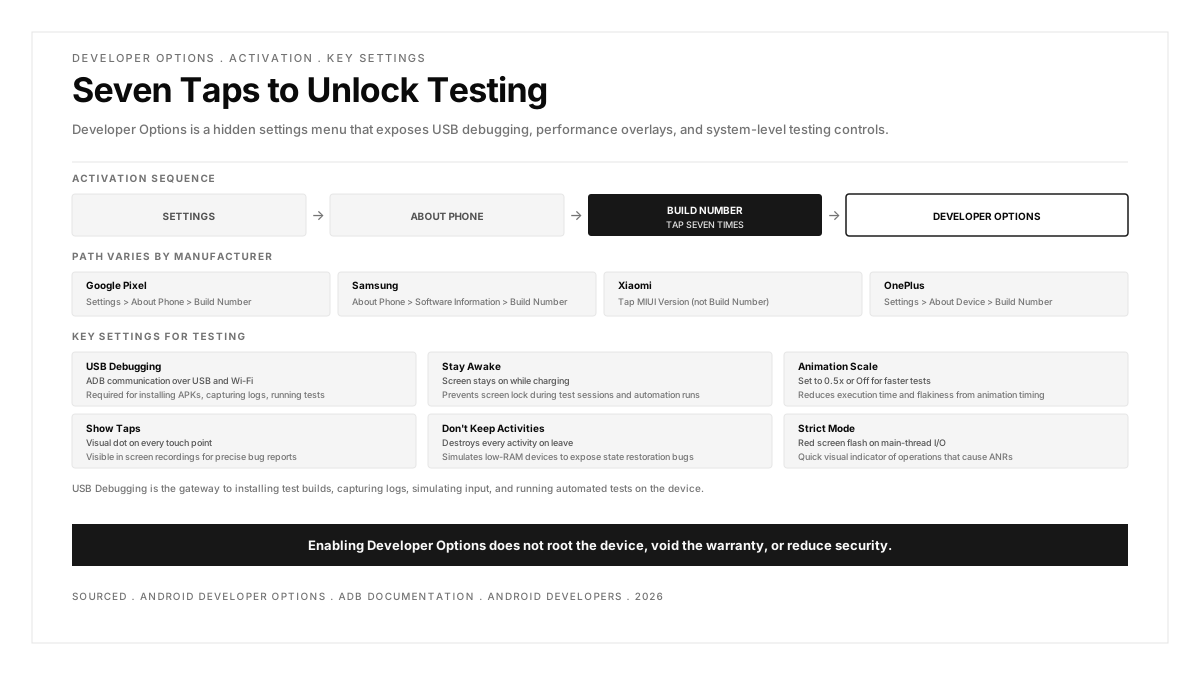
- Developer Options is activated by tapping the Build Number entry in Settings seven times. This method works on every Android device regardless of manufacturer, though the exact path to the Build Number varies.
- USB Debugging is the single most important setting inside Developer Options. It enables ADB communication over USB and Wi-Fi, which is required for installing APKs, capturing logs, and running automated tests.
- The Build Number location differs by manufacturer: Pixel and stock Android place it in Settings > About Phone. Samsung places it in Settings > About Phone > Software Information. Xiaomi places it in Settings > About Phone > MIUI Version (tap MIUI version instead of Build Number).
- Developer Options can be disabled at any time by toggling the main switch at the top of the Developer Options screen. Re-enabling requires tapping the Build Number seven times again.
- Enabling Developer Options does not root the device, void the warranty, or reduce security. It only makes the hidden settings menu visible.
How to enable Developer Options (universal method)
This method works on every Android device running Android 4.2 (Jelly Bean) or later.
- Open Settings
- Scroll down and tap About Phone (or About Tablet on tablets)
- Find the Build Number entry
- Tap Build Number seven times in rapid succession
- A toast message appears: "You are now a developer!" (or the device prompts for the screen lock PIN/pattern before enabling)
- Go back to the main Settings screen
- Developer Options now appears above or below About Phone (depending on the manufacturer and Android version)
On devices running Android 8.0 or later, Developer Options may appear under Settings > System > Developer Options instead of directly in the main Settings list.
Manufacturer-specific paths
The Build Number is in a different location on some manufacturer skins. The activation gesture (seven taps) is the same everywhere.
Google Pixel (stock Android)
Path: Settings > About Phone > Build Number
Pixel devices use near-stock Android, so the path matches the universal method exactly. After activation, Developer Options appears at Settings > System > Developer Options.
Samsung (One UI)
Path: Settings > About Phone > Software Information > Build Number
Samsung moves Build Number one level deeper into a "Software Information" submenu. After seven taps, a toast confirms activation. Developer Options appears at Settings > Developer Options (directly in the main settings list, near the bottom).
Xiaomi (MIUI / HyperOS)
Path: Settings > About Phone > MIUI Version (or HyperOS Version)
On Xiaomi devices running MIUI, tap the MIUI Version field seven times instead of the Build Number. On devices running HyperOS (2024 and later), tap the HyperOS Version field. Developer Options appears at Settings > Additional Settings > Developer Options.
OnePlus (OxygenOS)
Path: Settings > About Device > Build Number
OnePlus follows the standard path. After activation, Developer Options appears at Settings > System > Developer Options (on Android 12+ with OxygenOS 12+) or Settings > Developer Options (on older versions).
Huawei (EMUI / HarmonyOS)
Path: Settings > About Phone > Build Number
On EMUI devices, the path is standard. On newer HarmonyOS devices, the path may be Settings > About Phone > Build Version. After activation, Developer Options appears at Settings > System and Updates > Developer Options.
Motorola (My UX)
Path: Settings > About Phone > Build Number
Motorola uses near-stock Android. The path and behavior match the universal method. Developer Options appears at Settings > System > Developer Options.
OPPO / Realme (ColorOS)
Path: Settings > About Phone > Build Number (or Version Number on some models)
Some ColorOS versions use "Version Number" instead of "Build Number." After activation, Developer Options appears at Settings > System Settings > Developer Options or Settings > Additional Settings > Developer Options.
Enabling USB Debugging
USB Debugging is the most important setting inside Developer Options for testers. It allows ADB to connect to the device.
- Open Settings > Developer Options (or Settings > System > Developer Options)
- Scroll to the Debugging section
- Toggle USB Debugging on
- A confirmation dialog appears: "Allow USB debugging?" with a warning about computer access. Tap OK.
- Connect the device to a computer with a USB cable
- The device displays another prompt: "Allow USB debugging?" with the computer's RSA key fingerprint. Tap Allow (and optionally check "Always allow from this computer").
After these steps, the device appears in the output of adb devices on the connected computer.
Wireless debugging (Android 11+)
Android 11 introduced wireless debugging, which connects ADB over Wi-Fi without the initial USB cable.
- Open Settings > Developer Options
- Toggle Wireless Debugging on
- Tap Wireless Debugging to open its submenu
- Tap Pair device with pairing code
- The device displays an IP address, port, and pairing code
- On the computer, run:
- Enter the pairing code when prompted
- After pairing, connect with:
The device now appears in adb devices over Wi-Fi. The pairing step is needed only once per computer; subsequent connections use adb connect directly.
Key Developer Options settings for testers
Beyond USB Debugging, several settings in Developer Options are valuable during testing.
Stay Awake
Location: Developer Options > Stay Awake
Keeps the screen on while the device is charging. This prevents the screen from locking during automated test runs or manual testing sessions where the tester needs to observe the screen continuously.
OEM Unlocking
Location: Developer Options > OEM Unlocking
Allows the bootloader to be unlocked, which is required for flashing custom ROMs or recovery images. This is not needed for standard app testing and should remain disabled unless the tester specifically needs bootloader access.
USB Configuration
Location: Developer Options > Default USB Configuration (or Select USB Configuration)
Sets the default behavior when the device connects via USB. Options include: Charging Only, File Transfer (MTP), PTP, RNDIS, and MIDI. For testing, File Transfer is the most useful default because it allows the computer to browse the device's storage.
Animation Scale
Location: Developer Options > Drawing section > Window Animation Scale, Transition Animation Scale, Animator Duration Scale
Controls the speed of UI animations. Setting all three to 0.5x speeds up the device noticeably and makes automated tests run faster because animation completion is the most common reason tests wait unnecessarily. Setting all three to Off (0x) eliminates animations entirely, which is useful for UI test automation where animation transitions create timing variability.
For real device testing setups, disabling animations is a standard optimization that reduces test execution time and flakiness.
Show Taps
Location: Developer Options > Input section > Show Taps
Displays a visual dot on screen wherever the user touches. This is useful during manual testing sessions that are being screen-recorded, because the recording shows exactly where the tester tapped.
Pointer Location
Location: Developer Options > Input section > Pointer Location
Overlays a bar at the top of the screen showing touch coordinates, pressure, and size. Useful for verifying tap targets during UI testing and for providing exact coordinates when filing bug reports about touch responsiveness.
Strict Mode
Location: Developer Options > Monitoring section > Strict Mode Enabled
Flashes the screen red when the app performs disk or network operations on the main thread. This is a quick visual indicator of performance problems that cause ANRs (Application Not Responding errors). Testers who notice red flashes during manual testing should file a performance bug.
Don't Keep Activities
Location: Developer Options > Apps section > Don't Keep Activities
Destroys every activity as soon as the user navigates away from it. This simulates aggressive memory management that some low-RAM devices perform, exposing bugs in state restoration. If the app loses data or crashes when the user navigates back to a previous screen with this setting enabled, the app has a state restoration bug.
Background Process Limit
Location: Developer Options > Apps section > Background Process Limit
Limits the number of background processes the system keeps alive. Setting it to a low number (1 or 2) simulates memory pressure and tests whether the app handles being killed in the background and restored correctly.
GPU Rendering Profiling
Location: Developer Options > Monitoring section > Profile GPU Rendering
Displays a colored bar graph overlaid on the screen showing the time each frame takes to render. The green line represents the 16ms threshold for 60fps. Bars that consistently exceed the green line indicate the UI is janking. This is a fast visual check during mobile app performance testing.
How to disable Developer Options
- Open Settings > Developer Options (or Settings > System > Developer Options)
- Toggle the main switch at the top of the screen to Off
This hides Developer Options from the Settings menu and disables all developer settings, including USB Debugging. The menu is not deleted; it is only hidden. To re-enable, tap the Build Number seven times again.
On Samsung devices, the toggle is at the top of the Developer Options screen. On some Xiaomi devices, the toggle may be labeled differently, but the behavior is the same.
Developer Options and device security
Enabling Developer Options does not root the device, install any additional software, or bypass the lock screen. The only security consideration is USB Debugging: when enabled, any computer connected to the device via USB can execute ADB commands after the user approves the connection prompt on the device.
Best practices for test devices:
- Enable USB Debugging only on dedicated test devices, not personal daily-use devices
- Revoke USB debugging authorizations when returning a test device to the pool: Developer Options > Revoke USB Debugging Authorizations
- Disable USB Debugging when the device is not actively being used for testing
- Set a screen lock (PIN, pattern, or fingerprint) to prevent unauthorized physical access even with USB Debugging enabled
For teams managing mobile app testing across a device lab, documenting the Developer Options configuration for each device ensures consistent test conditions.
.png)
FAQs
Does enabling Developer Options void the warranty?
No. Developer Options is a built-in Android feature, not a modification. It does not alter the system software, root the device, or unlock the bootloader (unless the user explicitly enables OEM Unlocking and runs a bootloader unlock command). Google, Samsung, and other manufacturers confirm that enabling Developer Options does not affect the warranty.
Why can I not find Build Number on my device?
The Build Number field is in different locations depending on the manufacturer. On Samsung, it is under Settings > About Phone > Software Information. On Xiaomi, tap MIUI Version instead of Build Number. On OPPO, look for Version Number. If the device runs a heavily customized ROM, search within Settings (most Android Settings apps have a search bar at the top) for "Build Number" or "build."
Is USB Debugging safe?
USB Debugging is safe when used on trusted computers. The risk is that any computer connected via USB can install apps, read logs, and execute shell commands on the device. Android mitigates this by requiring the user to approve each new computer connection with an on-device prompt. For daily-use devices, disable USB Debugging when not actively developing or testing.
What is the difference between Developer Options and rooting?
Developer Options is a standard Android settings menu that exposes debugging tools. It runs within Android's normal security model. Rooting bypasses the security model entirely, granting superuser access to the operating system. Rooting can void the warranty, trip SafetyNet (which blocks banking and payment apps), and introduce security vulnerabilities. Developer Options does none of these things.
How do I enable Developer Options on Android TV?
On Android TV (and Google TV), go to Settings > Device Preferences > About > Build. Tap "Build" seven times. Developer Options appears under Settings > Device Preferences > Developer Options. USB Debugging works the same way as on phones, though the physical USB connection may require a specific port on the TV.
Can I have Developer Options enabled and pass SafetyNet?
Yes. Developer Options alone does not trip SafetyNet or Play Integrity checks. USB Debugging enabled does not trip them either. Only bootloader unlocking (OEM Unlocking followed by the actual unlock command) affects SafetyNet status. Apps that use SafetyNet for integrity checks (banking apps, Google Pay) function normally with Developer Options enabled.
How do I reset Developer Options to defaults?
Toggle the main Developer Options switch to Off. This resets all settings within Developer Options to their defaults (USB Debugging off, animations at 1x, Stay Awake off, etc.). When re-enabled, all settings start from their default values.