
How to View Device Logs on iPhone and Android
How to view device logs on iPhone and Android using Xcode Console, ADB logcat, Android Studio, and third-party tools. Covers crash logs, system logs, and app-specific filtering.
Gautam · 12 min read
autosana.ai
Device logs are the real-time record of every event an operating system and its applications produce, including errors, warnings, state transitions, network requests, and crash reports. Viewing these logs is the fastest way to diagnose why an app crashed, why a feature behaves unexpectedly, or why a device is running slowly.
Both iOS and Android generate logs continuously. The difference is how you access them. Android exposes logs through ADB and Android Studio with minimal restrictions. iOS restricts log access more tightly, channeling it through Xcode, the Console app, or third-party tools that connect over USB. This guide covers every method for both platforms, from the quickest one-line terminal command to the most detailed crash log analysis.
Key Takeaways
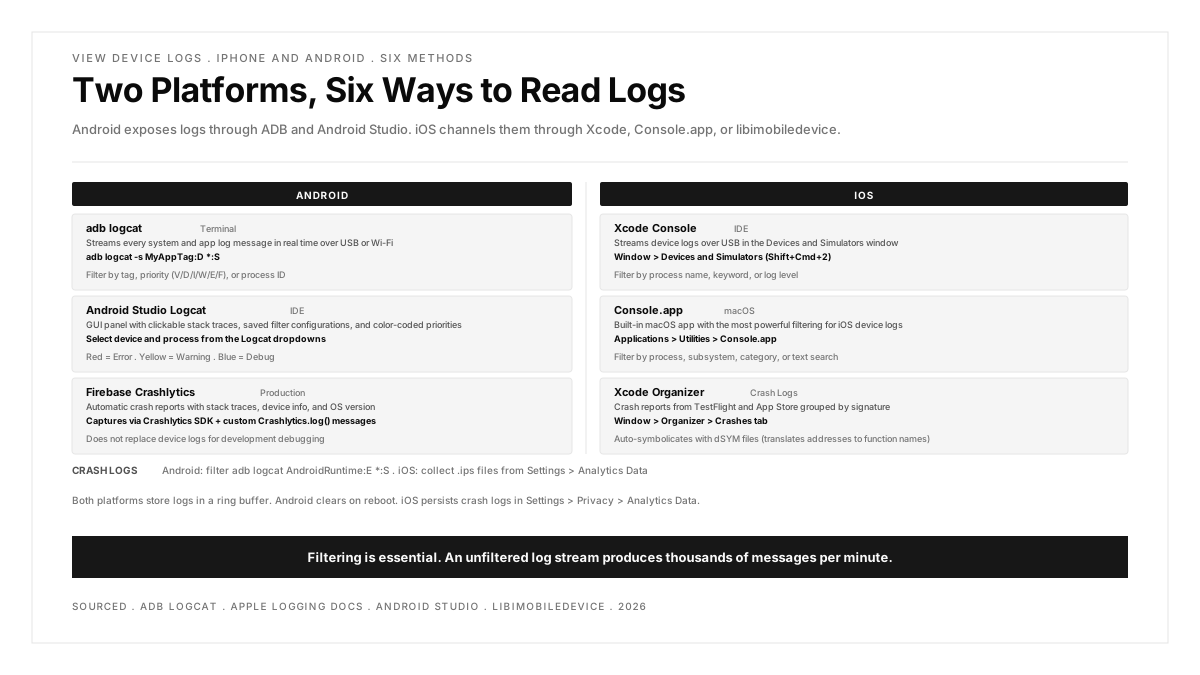
- On Android, adb logcat is the fastest way to view device logs from a terminal. It streams every system and app message in real time and supports filtering by tag, priority, and process ID.
- On iOS, Xcode's Devices and Simulators window streams device logs over USB. The macOS Console app provides the same data with more powerful filtering and search.
- Crash logs on iOS are stored in Settings > Privacy and Security > Analytics and Improvements > Analytics Data. On Android, they appear in adb logcat output tagged with AndroidRuntime and priority E (Error) or F (Fatal).
- Filtering is essential. An unfiltered log stream produces thousands of messages per minute. Filter by your app's process name, tag, or bundle identifier to isolate the relevant entries.
- Both platforms support pulling logs to a file for offline analysis, which is useful when a tester captures a bug in the field and sends the log to the development team.
Android: viewing device logs
Method 1: ADB logcat (terminal)
The most direct method. Connect the device over USB (with USB debugging enabled) or connect to an emulator, and run:
This streams every log message from the device. The output scrolls rapidly because the system, framework, and every running app produce messages simultaneously.
Filter by tag:
Shows only messages tagged with "MyAppTag" and silences everything else.
Filter by priority level:
Priority levels: V (Verbose), D (Debug), I (Info), W (Warning), E (Error), F (Fatal). *:E shows only Error and Fatal messages, which is the most efficient filter for finding crashes and failures.
Filter by process ID:
Shows only messages from the specified app's process. This is the cleanest filter because it excludes system messages entirely.
Save to a file:
The -d flag dumps the current log buffer and exits. Useful for saving a snapshot at a specific moment, such as immediately after reproducing a bug.
Clear the log buffer before a test:
This ensures the captured log contains only messages from the test session.
For a full reference of ADB commands including log filtering, see the Android Debug Bridge documentation.
Method 2: Android Studio Logcat
Android Studio's built-in Logcat panel provides the same data as adb logcat with a graphical interface, clickable stack traces, and persistent filter configurations.
- Connect the device or start an emulator
- Open the Logcat panel at the bottom of Android Studio
- Select the target device from the device dropdown
- Select the target process from the process dropdown (or choose "No Filters" for all processes)
- Use the search bar to filter by keyword, tag, or regex
Key features:
- Clickable stack traces: Clicking a class name or line number in a crash stack trace navigates directly to the source file
- Saved filters: Create and name filter configurations for different debugging scenarios
- Color-coded priorities: Error messages appear in red, warnings in yellow, debug in blue
- Log level dropdown: Switch between Verbose, Debug, Info, Warn, Error, and Assert
Method 3: Firebase Crashlytics (production crashes)
For production apps, device logs are not accessible through ADB because the tester does not have physical access to every user's device. Firebase Crashlytics captures crash reports automatically and sends them to the Firebase console, where they appear with stack traces, device information, OS version, and custom log messages the developer added with Crashlytics.log().
Crashlytics does not replace device logs for debugging during development, but it is the standard method for monitoring crashes in production.
iOS: viewing device logs
Method 1: Xcode (Devices and Simulators)
The most common method for iOS developers and testers.
- Connect the iPhone or iPad to the Mac with a USB cable
- Open Xcode
- Go to Window > Devices and Simulators (or press Shift+Command+2)
- Select the connected device in the left sidebar
- Click Open Console to stream device logs
The console shows all system and app messages. Use the search field to filter by process name, keyword, or log level.
For simulator logs: When running an app in the iOS Simulator, logs appear directly in Xcode's Debug Console (the bottom panel). These are the same messages that NSLog() and os_log() produce.
Method 2: macOS Console app
The Console app (built into macOS) provides more powerful filtering than Xcode's device console.
- Connect the device over USB
- Open Console.app from Applications > Utilities
- Select the connected device in the left sidebar (it appears under "Devices")
- The log stream begins immediately
Filtering in Console:
- Process filter: Type the app name or bundle identifier in the search bar, then select "Process" from the filter dropdown
- Subsystem filter: Filter by the os_log subsystem string the developer set in the app code
- Category filter: Filter by log category within a subsystem
- Text search: Search for any keyword across all log messages
- Include Info/Debug messages: By default, Console hides Info and Debug level messages. Go to Action > Include Info Messages and Include Debug Messages to show them
Method 3: Xcode Organizer (crash logs)
Crash logs from TestFlight testers and App Store users appear in Xcode's Organizer.
- Open Xcode
- Go to Window > Organizer
- Select the Crashes tab
- Select the app from the left sidebar
- Crash reports appear grouped by crash signature, with stack traces, device information, and OS version
The Organizer automatically symbolicates crash logs (translates memory addresses into function names and line numbers) if the corresponding dSYM files are available.
Method 4: On-device crash logs
iOS stores crash logs on the device itself:
- Open Settings > Privacy and Security > Analytics and Improvements > Analytics Data
- Scroll through the alphabetical list of log files
- Tap a file to view its contents
- Use the Share button to send it via email or AirDrop
Files are named with the app name and a timestamp. Crash logs have the extension .ips or .crash. These files contain the raw crash report including the exception type, thread backtraces, and binary image information.
Method 5: libimobiledevice (open source, no Xcode)
For Linux users or anyone who needs iOS device logs without Xcode, libimobiledevice provides command-line access:
This streams the device's system log to the terminal, similar to adb logcat on Android. Filter with standard Unix tools:
Install on macOS with Homebrew:
Reading crash logs
Android crash logs
Android crash logs appear in logcat with the tag AndroidRuntime and priority F (Fatal). A typical crash log:
The key information: the exception type (NullPointerException), the exact line of code (MainActivity.java:47), and the thread (main). The stack trace reads from top to bottom, with the most specific location at the top.
Filter for crashes only:
iOS crash logs
An iOS crash log contains several sections:
Exception Information:
Thread Backtraces:
The "Crashed" thread is the one that caused the termination. The stack trace reads from bottom to top for the call sequence (frame 2 called frame 1 called frame 0). Look for your app's binary name in the frames to find the line of code responsible.
Symbolication: Raw crash logs show memory addresses instead of function names. Symbolicating the log translates these addresses using the dSYM file produced during the build. Xcode's Organizer does this automatically. For manual symbolication, use the atos command:
Filtering strategies for testers
An unfiltered device log is overwhelming. These filtering strategies extract the information that matters for testing.
Before reproducing a bug
- Clear the log buffer (adb logcat -c on Android, start a new Console recording on iOS)
- Note the timestamp
- Reproduce the bug
- Stop the log capture immediately
- Search for Error and Fatal messages within the time window
During a test session
Set up filters before starting:
Android (ADB):
iOS (Console.app): Set the process filter to the app name, include Debug messages, and start streaming.
For crash analysis
Android: Filter for AndroidRuntime:E and DEBUG:I (native crashes).
iOS: Collect the .ips or .crash file from the device or from Xcode Organizer.
For performance investigation
Android: Watch for Choreographer messages about skipped frames:
Messages like "Skipped 47 frames! The application may be doing too much work on its main thread" indicate UI jank. For deeper mobile app performance testing, combine log analysis with profiling tools.
iOS: Filter for os_signpost messages if the developer has instrumented the app with signposts, or use Instruments for detailed performance profiling.
Comparing log access across platforms
| Capability | Android | iOS |
|---|---|---|
| Terminal log streaming | adb logcat (built in) | idevicesyslog (requires libimobiledevice) |
| IDE integration | Android Studio Logcat | Xcode Console |
| On-device crash logs | Settings > Developer Options > Bug Report | Settings > Privacy > Analytics Data |
| Log filtering | Tag, priority, PID, regex | Process, subsystem, category, text search |
| Remote crash reporting | Firebase Crashlytics | Xcode Organizer + Crashlytics |
| Log persistence | Ring buffer (clears on reboot) | Ring buffer (persists crash logs) |
| USB required | Yes (or Wi-Fi ADB) | Yes (or Wi-Fi with Xcode 14+) |
| Works on Linux | Yes | Yes (with libimobiledevice) |
For teams testing across both platforms, establishing a consistent log capture workflow reduces the time between reproducing a bug and identifying its cause. The mobile app testing guide covers how log analysis fits into the broader testing process.
.png)
FAQs
How do I view iPhone logs without a Mac?
Install libimobiledevice on a Linux machine (sudo apt install libimobiledevice-utils on Ubuntu or Debian) and run idevicesyslog. This streams the device log to the terminal. On Windows, third-party tools like iMazing or 3uTools provide a graphical interface for viewing iOS device logs without Xcode.
Why are my Android logs empty or not showing?
Three common causes. First, USB debugging is not enabled on the device (enable it in Settings > Developer Options). Second, the ADB server is stale (run adb kill-server then adb start-server). Third, the log buffer was recently cleared. Some manufacturer ROMs also restrict log access; check if the device has a "Log Permission" or "Debug Log" setting in Developer Options.
How do I filter logs by my app only?
On Android, use adb logcat --pid=$(adb shell pidof com.example.myapp) to show only your app's process. On iOS, use Console.app and set the process filter to your app name. Both approaches exclude system messages and other apps' logs entirely.
How long do device logs persist?
Android uses a ring buffer that overwrites older entries as new messages arrive. The buffer size varies by manufacturer (typically 64 KB to 256 KB), which means logs from hours ago may already be gone. A reboot clears the buffer entirely. iOS crash logs persist in the Analytics Data section until the user deletes them, but system logs use a similar ring buffer that clears older entries. For persistent logging, capture logs to a file during the test session.
Can I view device logs wirelessly?
On Android, enable wireless ADB (adb tcpip 5555, then adb connect <device-ip>:5555) and run logcat over the network connection. On iOS, Xcode 14 and later supports wireless device connections: go to Window > Devices and Simulators, select the device, and enable "Connect via network." Console.app also works over the network once the device is paired.
What is the difference between logcat and a bug report?
Logcat streams the log buffer in real time (or dumps a snapshot with -d). A bug report (adb bugreport) is a comprehensive ZIP file containing logcat output, system state, running processes, network configuration, and other diagnostic information. Logcat is for real-time debugging. Bug reports are for filing detailed issues with the Android platform or device manufacturer.