
ADB Commands Cheat Sheet for Testers
ADB commands reference for mobile testers. Covers device connection, app management, file transfer, log capture, input simulation, and network debugging with copy-paste examples.
Gautam · 19 min read
autosana.ai
ADB (Android Debug Bridge) is a command-line tool that communicates with Android devices and emulators, allowing testers to install apps, capture logs, simulate user input, transfer files, and inspect device state without touching the screen. It ships as part of the Android SDK Platform-Tools and works over USB or Wi-Fi.
Every Android tester eventually needs ADB. The GUI tools handle the common cases, but the moment a test requires pulling a crash log from a device in the field, installing a specific APK version, clearing app data between test runs, or automating a sequence of taps from a script, ADB is the tool that does it. This cheat sheet covers the commands that testers use most, organized by task, with copy-paste examples that work on macOS, Linux, and Windows.
Key Takeaways
- ADB connects to Android devices over USB (the default) or over Wi-Fi (useful for testing on devices without a free USB port or when the USB port is needed for other peripherals).
- adb logcat is the single most useful command for testers. It streams the device log in real time, which is the fastest way to diagnose crashes, ANRs, and unexpected behavior.
- adb shell pm clear <package> resets an app to a clean state without uninstalling it, which is essential for repeatable test runs.
- adb shell input simulates taps, swipes, text input, and key events, enabling basic test automation from a shell script without any testing framework.
- When multiple devices are connected, every ADB command needs the -s <serial> flag to target a specific device. Without it, ADB fails with "error: more than one device/emulator."
Setting up ADB
ADB is included in the Android SDK Platform-Tools. If Android Studio is installed, ADB is already available.
Verify the installation
Expected output: Android Debug Bridge version 1.0.41 (or higher).
If the command is not found, add the Platform-Tools directory to the system PATH:
macOS/Linux:
Add this line to ~/.zshrc or ~/.bashrc to make it permanent.
Windows:
Or add the path through System Properties > Environment Variables.
Install without Android Studio
If Android Studio is not needed, install Platform-Tools standalone from developer.android.com/tools/releases/platform-tools. Extract the archive and add the directory to PATH.
Device connection commands
List connected devices
Output:
Each line shows the device serial number and status. device means connected and ready. offline means the device is not responding. unauthorized means USB debugging has not been approved on the device.
Connect over Wi-Fi
The first command switches the device to TCP/IP mode on port 5555 (requires initial USB connection). The second connects over the network. Disconnect from USB after the Wi-Fi connection is established.
To return to USB mode:
Target a specific device
When multiple devices are connected, prefix every command with -s <serial>:
Restart the ADB server
This resolves most connection issues: devices stuck in "offline" status, stale connections, and port conflicts.
App management commands
Install an APK
Common flags:
| Flag | Purpose |
|---|---|
| -r | Replace the existing app (keep data) |
| -t | Allow test APKs |
| -d | Allow version downgrade |
| -g | Grant all runtime permissions automatically |
Example with flags:
Install an APK on a specific device
Uninstall an app
Keep the app data while uninstalling:
Clear app data (reset to clean state)
This removes all app data: databases, shared preferences, cache, and files. The app remains installed but behaves as if it was just installed for the first time. This command is essential for repeatable test runs where each test must start from a known state.
Force stop an app
Terminates the app process immediately. Use before pm clear to ensure the app is not writing data while it is being cleared.
List installed packages
Filter by keyword:
Show only third-party (non-system) apps:
Get the current foreground activity
This shows which Activity is currently displayed, which is useful for verifying navigation state during testing.
Launch an app
Launch with an intent (deep link):
File transfer commands
Pull a file from the device
Push a file to the device
Pull an entire directory
Pull app-specific data (requires debuggable app)
This only works for apps built with android:debuggable="true". Release builds restrict access to app-specific directories.
Log and debugging commands
Stream the device log
This streams every log message from the device in real time. The output is verbose. Use filters to focus on what matters.
Filter by tag
Shows only messages with the tag "MyAppTag."
Filter by priority
Priority levels: V (Verbose), D (Debug), I (Info), W (Warning), E (Error), F (Fatal). *:E shows only Error and Fatal messages.
Combine tag and priority filters
Shows Debug and above from "MyAppTag," silences everything else.
Save logs to a file
The -d flag dumps the current log buffer and exits (instead of streaming). Useful for capturing a snapshot of the log at a specific point in time.
Clear the log buffer
Run this before a test to ensure that log output contains only messages from the test run, not from previous activity.
Capture a bug report
Produces a comprehensive ZIP file containing logs, system state, network information, and running processes. This is the format that Android's issue tracker expects when filing system-level bugs.
Check device properties
Returns the Android version number (e.g., "15"). Other useful properties:
| Property | What It Returns |
|---|---|
| ro.build.version.sdk | API level (e.g., "35") |
| ro.product.model | Device model (e.g., "Pixel 8") |
| ro.product.manufacturer | Manufacturer (e.g., "Google") |
| ro.build.display.id | Build identifier |
| ro.build.type | Build type (user, userdebug, eng) |
Monitor ANRs (Application Not Responding)
Or pull ANR traces from the device:
Input simulation commands
ADB can simulate user interactions, which is useful for quick ad hoc automation without a testing framework.
Tap at screen coordinates
Taps at position (500, 1200) in pixels from the top-left corner.
Swipe
Swipes from (500, 1500) to (500, 500) over 300 milliseconds. Adjust the duration for faster or slower swipes.
Type text
Types "hello world" into the currently focused text field. Spaces are encoded as %s. Special characters may need escaping.
Press a key
Common key codes:
| Key Code | Action |
|---|---|
| KEYCODE_HOME | Go to home screen |
| KEYCODE_BACK | Press back button |
| KEYCODE_ENTER | Press enter/return |
| KEYCODE_VOLUME_UP | Increase volume |
| KEYCODE_VOLUME_DOWN | Decrease volume |
| KEYCODE_POWER | Press power button |
| KEYCODE_MENU | Open menu |
| KEYCODE_APP_SWITCH | Open recent apps |
| 66 | Enter (numeric equivalent) |
| 67 | Delete/backspace |
Take a screenshot
Record the screen
Recording stops after 3 minutes (the default limit) or when Ctrl+C is pressed. Set a custom time limit:
Pull the recording afterward:
Screen recording is useful for capturing test execution to attach to bug reports.
Network and connectivity commands
Enable and disable Wi-Fi
Enable and disable mobile data
Toggle airplane mode
Replace 1 with 0 to disable.
Check current network status
Set a network speed limit (emulator only)
For emulators, use the emulator console to simulate network conditions:
Then use dumpsys or the emulator's extended controls to set network type (3G, 4G, etc.).
Device management commands
Reboot the device
Reboot into bootloader
Reboot into recovery
Check battery status
Returns charge level, temperature, voltage, and charging status.
Set battery level (emulator only)
Useful for testing low-battery behavior. Reset to normal:
List running processes
Check memory usage of an app
This outputs detailed memory allocation: native heap, Dalvik heap, graphics, stack, and total PSS (Proportional Set Size). Useful for catching memory leaks during mobile app performance testing.
ADB in testing workflows
Clean-state test execution
The standard sequence for running a manual test from a known state:
This stops the app, clears all data, clears the log, launches the app fresh, and captures logs from the test session.
Deep link testing
Verify that the app handles deep links correctly:
Test with HTTPS links (App Links):
If the link does not open the app, check the App Links configuration:
Permission testing
Grant a specific permission:
Revoke a permission:
This allows testing permission dialogs and permission-denied states without navigating through Settings on the device.
Installing and testing multiple builds
When comparing behavior between app versions:
The -r flag replaces the existing installation (preserving data). The -d flag allows version downgrades. This sequence lets testers switch between versions quickly without losing the device configuration.
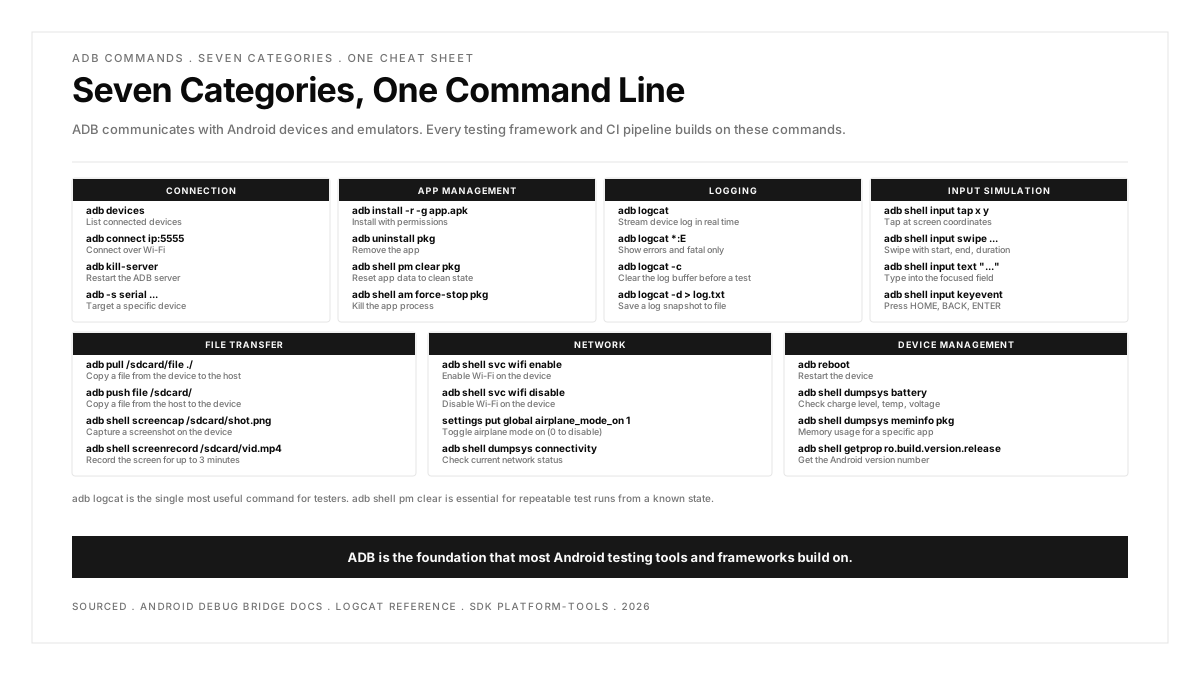
For teams working with broader Android test automation pipelines, ADB commands form the foundation that higher-level frameworks build on.
.png)
Quick reference table
| Task | Command |
|---|---|
| List devices | adb devices |
| Install APK | adb install -r -g app.apk |
| Uninstall app | adb uninstall com.example.app |
| Clear app data | adb shell pm clear com.example.app |
| Force stop | adb shell am force-stop com.example.app |
| Launch app | adb shell am start -n com.example.app/.MainActivity |
| Stream logs | adb logcat |
| Filter logs (errors only) | adb logcat *:E |
| Save logs to file | adb logcat -d > log.txt |
| Clear log buffer | adb logcat -c |
| Take screenshot | adb shell screencap /sdcard/shot.png && adb pull /sdcard/shot.png |
| Record screen | adb shell screenrecord /sdcard/vid.mp4 |
| Pull file | adb pull /sdcard/file.txt ./ |
| Push file | adb push file.txt /sdcard/ |
| Tap screen | adb shell input tap 500 1200 |
| Type text | adb shell input text "hello" |
| Press back | adb shell input keyevent KEYCODE_BACK |
| Grant permission | adb shell pm grant com.example.app android.permission.CAMERA |
| Revoke permission | adb shell pm revoke com.example.app android.permission.CAMERA |
| Check Android version | adb shell getprop ro.build.version.release |
| Check memory usage | adb shell dumpsys meminfo com.example.app |
| Bug report | adb bugreport ./report.zip |
| Restart ADB | adb kill-server && adb start-server |
| Connect via Wi-Fi | adb tcpip 5555 && adb connect <ip>:5555 |
FAQs
What is ADB used for in testing?
ADB is the command-line interface between a development machine and an Android device or emulator. Testers use it to install app builds, clear data between test runs, capture logs during execution, simulate user input, pull crash reports, and manage device state. It is the foundation that most Android testing tools and frameworks build on: when Espresso runs a test, Gradle installs the APKs using ADB. When a CI pipeline boots an emulator, it checks device readiness through ADB.
How do I fix "adb: command not found"?
The ADB binary is located in the Android SDK's platform-tools directory. Add this directory to the system PATH. On macOS, the default location is $HOME/Library/Android/sdk/platform-tools. On Windows, it is %LOCALAPPDATA%\Android\Sdk\platform-tools. On Linux, it depends on where the SDK was installed. After adding the path, restart the terminal session.
How do I fix "device unauthorized" in ADB?
This means the device has not approved USB debugging from the connected computer. On the device, look for a "Allow USB debugging?" dialog and tap "Allow" (check "Always allow from this computer" for convenience). If no dialog appears, revoke USB debugging authorizations in Settings > Developer Options > Revoke USB Debugging Authorizations, then reconnect the USB cable.
Can ADB work wirelessly?
Yes. Connect the device via USB, run adb tcpip 5555 to switch to TCP mode, then adb connect <device-ip>:5555. The device must be on the same network as the development machine. Android 11 and higher also support wireless debugging directly from Developer Options without the initial USB connection. Wireless ADB has slightly higher latency than USB but is fully functional for all commands.
How do I capture only my app's logs?
Use the tag filter: adb logcat -s YourAppTag:D *:S. This shows messages tagged with "YourAppTag" at Debug level and above, and silences everything else. The app must use Log.d("YourAppTag", "message") in its code. Alternatively, filter by process ID: find the PID with adb shell pidof com.example.myapp, then adb logcat --pid=<pid>.
What is the difference between ADB and Fastlane?
ADB is a device communication tool. It talks to Android devices and emulators at the operating system level: installing APKs, running shell commands, capturing logs, and transferring files. Fastlane is a build automation tool that orchestrates release workflows: code signing, building, testing, screenshotting, and submitting to app stores. ADB operates at the device level. Fastlane operates at the build pipeline level. They are complementary: Fastlane uses Gradle (which uses ADB) to install and run tests on devices.
Is ADB safe to use on production devices?
ADB requires USB debugging to be enabled in Developer Options, which is a security-sensitive setting. A device with USB debugging enabled is accessible to any computer it connects to (until the user authorizes a specific machine). For testing, this is necessary and expected. For production or personal devices, disable USB debugging when not actively testing. ADB itself does not modify the device in ways that survive disabling USB debugging, but any commands run through it (like pm clear or install) take effect immediately.