
Deep Link Testing: How to Verify Universal Links, App Links and Custom Schemes
How to test deep links on iOS and Android: Universal Links, App Links and custom URI schemes. Covers manual testing, platform tools, Branch validation, and common failures with fixes.
Gautam · 12 min read
autosana.ai
Deep link testing is the process of verifying that a URL opens the correct screen inside a mobile app with the correct data, across every entry point: push notifications, emails, SMS, web pages, QR codes and other apps. A deep link that works in development and fails in production is one of the most common mobile bugs, because the link depends on a chain of configuration (DNS, hosting, entitlements, intent filters) that differs between environments.
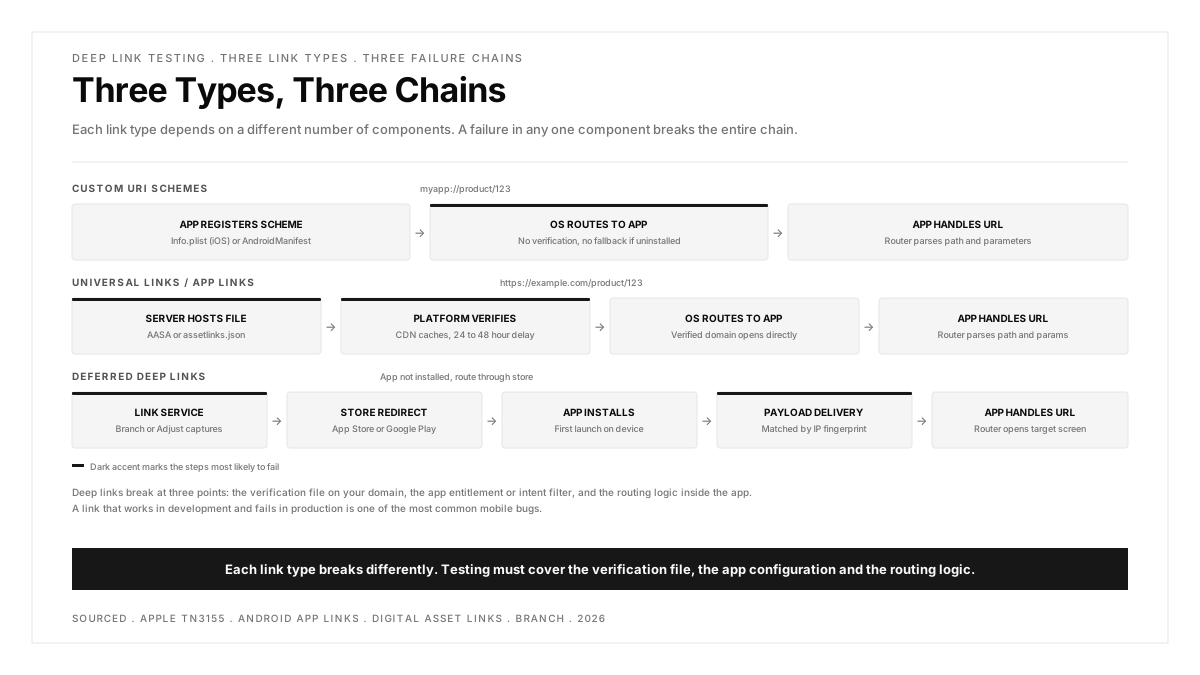
Three types of deep links exist on mobile, and each breaks differently.
Custom URI schemes (myapp://product/123) are the oldest form. They work when the app is installed and fail silently when it is not. Two apps can register the same scheme, creating collisions.
Universal Links (iOS) and App Links (Android) use standard HTTPS URLs (https://example.com/product/123). The OS verifies a hosted file (apple-app-site-association or assetlinks.json) to confirm the domain is authorized to open the app. These fail when the verification file is misconfigured, not hosted correctly, or cached by the OS.
Deferred deep links route the user to the app store when the app is not installed, then open the correct screen after installation. These require a third-party service (Branch, Firebase Dynamic Links, Adjust) to bridge the install.
Key Takeaways
- Deep links break at three points: the verification file hosted on your domain, the app's entitlement or intent filter configuration, and the routing logic inside the app. Testing must cover all three.
- Universal Links on iOS require an apple-app-site-association (AASA) file served at https://yourdomain.com/.well-known/apple-app-site-association with the correct content type and no redirects.
- App Links on Android require a Digital Asset Links file at https://yourdomain.com/.well-known/assetlinks.json with the correct package name and SHA-256 certificate fingerprint.
- The OS caches deep link verification results. On iOS, the AASA file is fetched by Apple's CDN and cached independently of Safari. Changes to the file can take hours to propagate, which makes debugging feel nondeterministic.
- Deferred deep links (routing through an app store install) are the hardest to test because the flow crosses three systems: the link service, the store, and the app's first launch.
How to test Universal Links on iOS
Universal Links require three things working together: the AASA file on your server, the Associated Domains entitlement in the app, and the routing logic in the app delegate or SceneDelegate.
Step 1: Validate the AASA file
The apple-app-site-association file must be served at /.well-known/apple-app-site-association over HTTPS, with content type application/json, and no redirects. Apple's CDN fetches this file and caches it independently.
Manual check: Open https://yourdomain.com/.well-known/apple-app-site-association in a browser. Verify it returns valid JSON with the correct app ID (team ID + bundle ID) and the URL patterns you expect.
Apple's validation tool: The Apple Search API validation endpoint lets you check what Apple's CDN currently has cached for your domain. This is the authoritative source for whether your AASA file is correctly deployed.
Step 2: Verify the Associated Domains entitlement
In Xcode, confirm the app's entitlements include applinks:yourdomain.com under Associated Domains. A common failure: the entitlement lists a different domain than the one serving the AASA file (staging vs production, www vs non-www).
Step 3: Test the link on a real device
Universal Links do not work in the iOS Simulator for all configurations. Test on a physical device:
- Send the link to yourself via Notes, Messages or email (not Safari's address bar, which bypasses Universal Links)
- Tap the link
- Verify the app opens to the correct screen with the correct data
- Long-press the link and verify the "Open in [App Name]" option appears
Common failure: Pasting a Universal Link into Safari's address bar opens the web page, not the app. This is by design. Universal Links activate when tapped from outside Safari (Messages, Notes, Mail, other apps), not when typed or pasted into the browser.
Step 4: Test the fallback
Uninstall the app and tap the same link. It should open the web page at the same URL. If the URL returns a 404 or a broken page, the fallback experience is broken even though the deep link itself is configured correctly.
How to test App Links on Android
App Links use Digital Asset Links (DAL) for domain verification, similar to iOS but with different mechanics.
Step 1: Validate the assetlinks.json file
The file must be at https://yourdomain.com/.well-known/assetlinks.json over HTTPS, containing the app's package name and the SHA-256 fingerprint of the signing certificate.
Manual check with ADB:
This shows the verification status for each domain the app declares. The status should read verified for App Links to work.
Google's validation tool: The Digital Asset Links API can check whether your assetlinks.json file passes validation.
Step 2: Test with adb
This sends the deep link directly to the app, bypassing the browser. If the app opens to the correct screen, the intent filter and routing logic work. If the app opens but shows the wrong screen, the routing logic has a bug.
Step 3: Test from a real entry point
Tap the link from an email, a push notification, or a messaging app. Verify the app opens without showing a disambiguation dialog (the "Open with" chooser). App Links should open the app directly without asking the user to choose between the app and a browser. If the chooser appears, verification failed.
Step 4: Test across browsers
Chrome, Firefox and Samsung Internet handle App Links differently. Chrome respects verified App Links and opens the app directly. Other browsers may show an interstitial or open the web page. Test the link from the three browsers installed on the device to verify consistent behavior.
How to test custom URI schemes
Custom URI schemes (myapp://path) are simpler but less reliable than Universal Links and App Links.
On iOS:
This sends the URI to the running simulator. Verify the app opens to the correct screen.
On Android:
Key limitation: Custom URI schemes have no fallback. If the app is not installed, the link does nothing (iOS) or shows an error (Android). They also have no domain verification, which means any app can register the same scheme. For production deep linking, Universal Links and App Links are the recommended approach. Custom schemes remain useful for development testing and for links that only appear inside the app itself.
How to test deferred deep links
Deferred deep links route through an app store install: the user taps a link, gets sent to the store, installs the app, and opens it to the screen the link originally pointed to. This flow crosses three systems and is the hardest deep link scenario to test.
The test sequence:
- Uninstall the app
- Tap a deferred deep link (from an email, SMS, or web page)
- Verify the link service (Branch, Adjust, or similar) redirects to the correct app store listing
- Install the app from the store (or from TestFlight / internal testing track)
- Open the app
- Verify the app navigates to the screen specified in the original link
What commonly fails:
- The link service loses the deep link payload during the redirect through the store
- The app's first-launch onboarding flow overrides the deep link routing
- The deferred link works on Wi-Fi but fails on cellular because the fingerprinting used to match the click to the install depends on IP address, which changes between cellular and Wi-Fi
Tools like Branch provide validation dashboards that show whether the link, the redirect, the install attribution and the in-app routing all completed successfully.
Common deep link failures and how to fix them
| Symptom | Likely Cause | Fix |
|---|---|---|
| Link opens web page instead of app | AASA or assetlinks.json not verified | Validate the file is served correctly, check domain matches app entitlement |
| Link opens the app but shows home screen | Routing logic does not handle the URL path | Add handling for the specific path pattern in the app's URL router |
| Link works from Messages but not from email | Email client wraps URL in a tracking redirect | The redirect breaks Universal Link verification. Use the direct URL or configure the redirect domain |
| Android shows "Open with" chooser | App Link verification failed | Run adb shell pm get-app-links and check verification status |
| Link works on first install but not after update | App update changed the signing certificate | Update the SHA-256 fingerprint in assetlinks.json |
| AASA changes do not take effect | Apple CDN caches the file | Wait 24 to 48 hours, or use Apple's validation endpoint to check cache status |
How deep link testing fits into the release process
Deep links should be tested before every release that changes URL routing, app entitlements, domain configuration, or onboarding flows. The minimum check: send three links (one Universal Link, one App Link, one deferred link) from outside the app and verify all three open the correct screen.
For teams running E2E testing as part of their pipeline, deep link verification can be automated as a test that launches the app with a specific URL and asserts on the screen that appears. The challenge is that Universal Links and App Links require real OS-level verification, which simulators and emulators handle inconsistently. Real device testing provides the most reliable results for deep link verification.
For the broader checklist of what to verify before a mobile release, a mobile app testing checklist includes deep link verification as a standard item in the functional testing section.
.png)
FAQs
What is the difference between a deep link and a Universal Link?
A deep link is any link that opens a specific screen inside an app rather than the home screen. Universal Links are Apple's implementation of deep links using standard HTTPS URLs with server-side verification. Custom URI schemes (myapp://) are another form of deep link but without verification or fallback. Universal Links are the recommended approach for iOS because they fall back to the web page if the app is not installed.
Can I test Universal Links in the iOS Simulator?
Partially. The Simulator supports Universal Links for some configurations, but behavior can differ from physical devices, particularly around AASA file caching and verification. For reliable testing, use a physical device. The Simulator is useful for testing the app's URL routing logic (does the right screen appear for this URL?) but not for testing the full OS-level verification flow.
Why does my deep link open in the browser instead of the app?
The most common causes: the AASA file (iOS) or assetlinks.json (Android) is not served correctly, the domain in the file does not match the domain in the link, the app's entitlement or intent filter is misconfigured, or the file is cached and has not updated. Start by validating the verification file, then check the app configuration, then wait for cache expiration.
How do I test deep links from push notifications?
Send a push notification containing the deep link URL as the notification payload. Tap the notification and verify the app opens to the correct screen. Test three scenarios: app in foreground (notification should still route to the correct screen), app in background (tapping the notification should bring the app forward and route), and app not running (tapping should launch the app cold and route after launch completes).
Do deep links work across all browsers?
No. On Android, Chrome respects verified App Links and opens the app directly. Firefox, Samsung Internet, Brave and other browsers may behave differently, showing interstitials or opening the web page. On iOS, Universal Links work consistently when tapped from outside Safari (Messages, Mail, Notes) but not when pasted into Safari's address bar. Test from the three most common browsers your users actually use.
How often should deep links be tested?
Test deep links before every release that changes URL routing, navigation structure, domain configuration, signing certificates, or onboarding flows. Also test after any change to the web server that hosts the AASA or assetlinks.json file, since a deployment that accidentally removes or modifies these files will silently break all deep links.