
Chrome Extension Testing: How to Test a Manifest V3 Extension End to End
A practical guide to Chrome extension testing: Manifest V3 service workers, Puppeteer vs Selenium vs Autosana, worked failure examples and CI setup.
- Written by
- Gautam Agarwal
- Read time
- 12 min read
- Published
Quick answer: Chrome extension testing loads your built extension into a real browser and drives it the way a user would, using the popup, the content script on a live page and any approval screens, then checks what changes. It confirms that your service worker, content scripts and storage work together in the package people install.
An extension is a guest in other people's houses. It lives on pages built by other teams, wakes up only when something calls it, and forgets whatever it held in memory each time it sleeps. Your tests have to follow it through all three.
Key Takeaways
- Chrome's docs define extension E2E testing as building the package, loading it into a browser and automating the flows a user goes through.
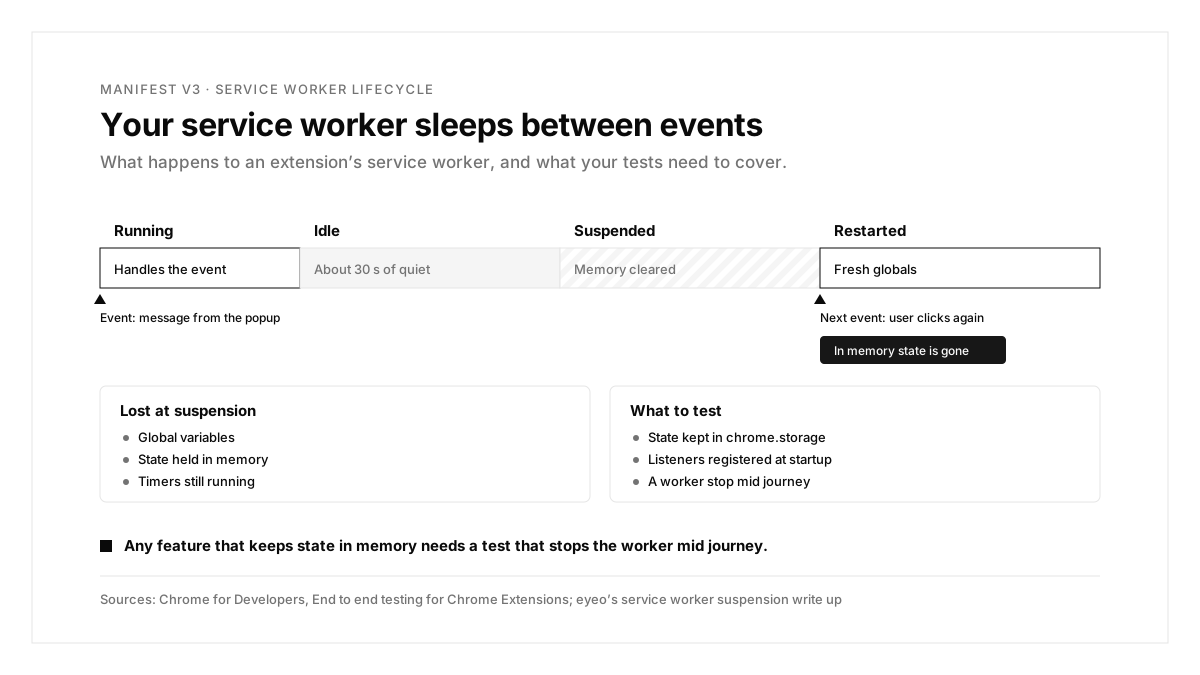
- Manifest V3 service workers stop when idle, so test that every feature still works after the worker restarts.
- Only Chrome's new headless mode loads extensions, which matters for CI.
- Selenium's ChromeDriver keeps service workers awake, which hides suspension bugs; Chrome documents a Puppeteer approach for termination tests.
- Updates are where most users meet your changes: a new permission can disable the extension until each user approves it.
- Autosana runs the real extension in Chromium, from a Chrome Web Store URL or a zipped unpacked folder, and records the exact build used in every run.
What is Chrome extension testing?
According to the Chrome guide to end to end testing for extensions, E2E testing loads your built extension package into a browser while a testing tool automates the same flows a user would go through.
A Manifest V3 extension has four surfaces worth testing:
- Extension pages: the popup, side panel and options page.
- Content scripts: the code that runs inside other websites.
- The service worker: the event handler that wakes, works and sleeps.
- Storage: the state that has to survive every sleep.
Every E2E test follows the same spine: build the package, load it, drive the user's actions and assert on what the user sees.
Where extensions break
| Layer | What can break |
|---|---|
| Install and permissions | The extension asks for more than it needs, or loses access after an update |
| Extension pages | The popup or side panel renders stale data |
| Content scripts | A host site changes its markup and the script misses its target |
| Service worker | State held in memory disappears when the worker stops |
| Message passing | The popup, content script and worker stop hearing each other |
| Storage | Settings fail to persist or sync across devices |
| Updates | A new version adds a permission and Chrome disables the extension until the user approves |
Ways to test a Chrome extension
| Method | What it proves | What it skips |
|---|---|---|
Manual: Load unpacked at chrome://extensions in Developer mode | The extension installs and works for you, today | Repeatability and every later build |
Unit tests with mocked chrome.* APIs (Jest with a mock library such as sinon-chrome) | Your logic, fast | The real browser, real pages and the worker lifecycle |
| Puppeteer or Playwright | Real journeys, plus direct access to the service worker | Upkeep of selectors on host pages |
| Selenium | Extension pages through chrome-extension:// URLs | Service worker suspension, since ChromeDriver keeps workers awake |
| Extension Update Testing Tool from Google Chrome Labs | Update flows and permission warnings | Day to day journeys |
| Autosana | Real journeys from a written flow, in Chromium, on every PR | Firefox and Safari extensions |
Unit tests vs E2E tests for extensions
| Test type | What it checks | Runs in | Common tool |
|---|---|---|---|
| Unit | One function, with chrome.* APIs replaced by fakes | Node.js | Jest, Vitest |
| E2E | The built extension on real pages | A real browser | Puppeteer, Playwright, Selenium, Autosana |
Chrome's own guidance favors E2E tests based on what is visible to the user rather than on internal state, so an internal refactor leaves the tests green.
Why E2E testing matters for Manifest V3 extensions
The service worker sleeps. In their write up on Chrome for Developers, engineers at eyeo found that Chrome suspended their extension's service worker after about 30 seconds of idle time, and that any state held in global variables vanished with it.
Host pages change on their own schedule. Content scripts depend on markup owned by other teams, so a site redesign can break your extension overnight.
Users cross several surfaces in one journey. A typical flow starts on a web page, opens the popup or side panel, and returns to the page.
Puppeteer vs Selenium vs Autosana for extensions
| Puppeteer | Selenium | Autosana | |
|---|---|---|---|
| Loading the extension | Launch arguments pointing at the unpacked folder | ChromeOptions | A Chrome Web Store URL or a zipped unpacked folder |
| Reaching the service worker | Yes, as a service_worker target | Through an extension page | Runs the real worker |
| Service worker suspension | Tested by stopping the worker in code | Hidden, since ChromeDriver keeps workers awake | Real browser lifecycle |
| Test format | JavaScript | Client code in several languages | A written flow, in YAML or the dashboard |
| Cost | Free, open source | Free, open source | Free tier, then paid plans |
Playwright and WebDriverIO also support extensions, and Chrome's docs point to their guides.
How to set up Chrome extension testing
Step 1: Build and package the extension
Build the unpacked Manifest V3 folder, then zip it with manifest.json at the archive root or inside one top level folder. Chrome's docs also recommend a fixed extension ID in tests, which keeps URLs like chrome-extension://<id>/popup.html stable.
With Autosana: upload that .zip or paste the Chrome Web Store URL. Autosana expects a zip of the unpacked folder rather than a .crx file.
Step 2: Write a Puppeteer test
import puppeteer from 'puppeteer';
const EXT = '/path/to/dist';
const browser = await puppeteer.launch({
headless: false,
args: [`--disable-extensions-except=${EXT}`, `--load-extension=${EXT}`],
});
const worker = await browser.waitForTarget(t => t.type() === 'service_worker');
const EXT_ID = new URL(worker.url()).host;
const page = await browser.newPage();
await page.goto(`chrome-extension://${EXT_ID}/popup.html`);
From there, drive the popup and assert on what it shows. Run these tests against Chromium, because Google Chrome and Microsoft Edge now block automation tools from side loading extensions.
Step 3: Write the same journey as a flow
```yaml
# .autosana/price-tracker.flow.yaml
name: Track a price
instructions: |
Open https://shop.example.com/product/42.
Verify the price tracker badge appears beside the price.
Click "Track price" and verify the confirmation appears.
```
With Autosana: add the extension from Apps → Create New App → Chrome Extension with a Web Store URL or a .zip, then attach it to your web app as the default for every run. The agent works with the real extension: service workers, content scripts, storage and network interception all run for real.
Step 4: Run on every pull request
```yaml
- uses: autosana/autosana-ci@main
with:
api-key: ${{ secrets.AUTOSANA_KEY }}
platform: web
app-id: my-web-app
flow-ids: "uuid-1,uuid-2"
```
With Autosana: each run resolves every attached extension to an exact build and stores it with the results, so a later extension update leaves past results intact. The Autosana web testing docs cover extension runs and per run overrides.
Test updates and permission changes
Most users meet a new version as an update rather than a fresh install. Google Chrome Labs publishes the Extension Update Testing Tool, a local update server that shows:
- the permission warnings a manifest.json change triggers
- how Chrome disables an updated extension until the user grants new permissions
- whether your migration logic between versions works, through a flow closer to a Chrome Web Store update than a simple reload
Run it before any release that touches permissions, and prefer optional permissions requested at the moment a feature needs them.
The extension journey checklist
| Journey | What to verify |
|---|---|
| First install | The onboarding page opens and default settings exist |
| Popup or side panel action | The page changes and the popup reflects it |
| Content script on a live site | The injected UI appears on the right element |
| Worker restart mid journey | The feature still works after the worker stops |
| Sign in inside the extension | The session survives restarts and browser relaunch |
| Update with a new permission | Users see the right prompt and keep their data |
| Several extensions together | Your extension and others, such as a wallet, coexist on one page |
With Autosana: attach several extensions to one web app and Autosana loads them together in one browser session, so the last row runs as a normal flow.
Chrome extension testing examples
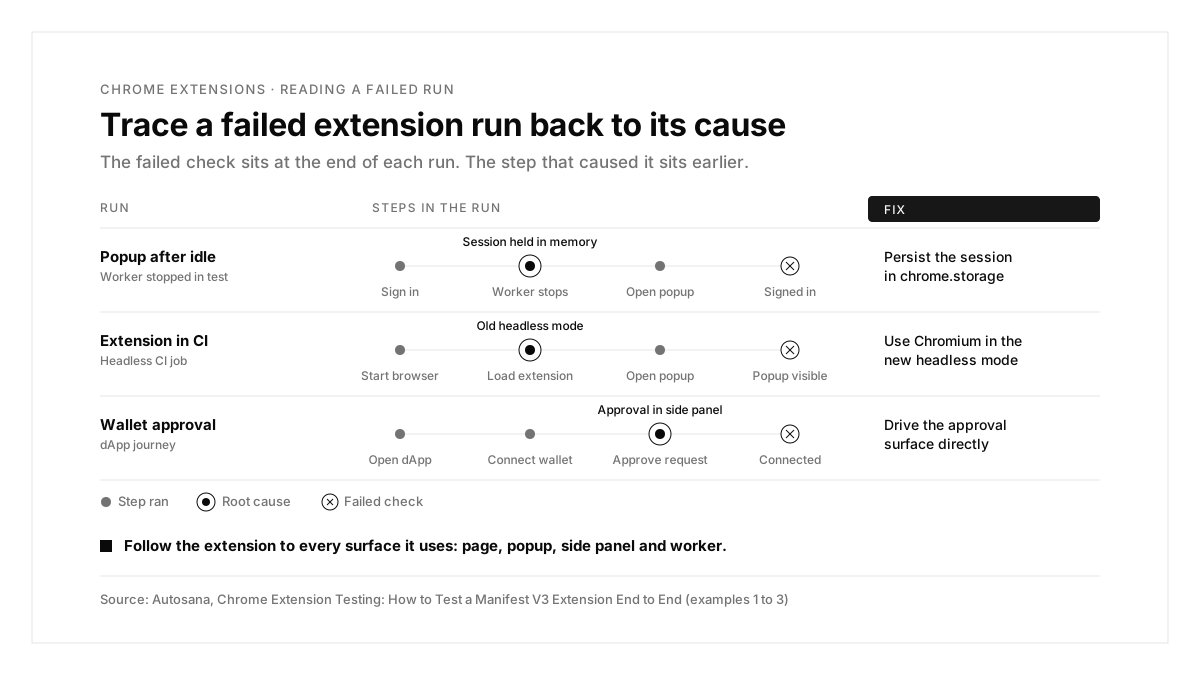
Each example starts from a failing run and traces it to a cause and a fix.
Example 1: The popup forgets the user after a coffee break
Scenario: the Selenium suite passes. Real users report that the popup shows "Sign in" again after a few minutes away.
| Step | Expected | What a Puppeteer run showed |
|---|---|---|
| Sign in through the popup | Signed in | Signed in |
| Stop the service worker | Worker restarts on demand | Worker restarts on demand |
| Open the popup again | Still signed in | "Sign in" shown |
Cause: the session lived in a global variable in the service worker, and the restart cleared it. Selenium kept the worker awake, so the suite missed the restart.
Fix: persist the session in chrome.storage and add a test that stops the worker mid journey.
With Autosana: extension runs use the real service worker in Chromium, so Autosana flows follow the browser's normal lifecycle rather than a worker held awake by a debugger.
Example 2: CI loads the browser and skips the extension
Scenario: tests pass on a laptop. In CI, every test fails at the first popup step.
| Step | Expected | What the CI run showed |
|---|---|---|
| Start the browser | Browser running | Browser running |
| Load the extension | Extension installed | Extension absent |
| Open the popup | Popup visible | Page error |
Cause: the CI job ran an old headless mode, or branded Chrome, and both block side loaded extensions for automation.
Fix: run Chromium in the new headless mode.
With Autosana: extension runs always use Chromium with Manifest V3 support in headless workers, so the browser choice is handled for you.
Example 3: Wallet connection hangs at approval
Scenario: a dApp test clicks "Connect wallet" and waits until it times out.
| Step | Expected | What the run showed |
|---|---|---|
| Open the dApp | Connect button | Connect button |
| Click "Connect wallet" | Approval request | Approval opened in the side panel |
| Approve the request | Wallet connected | Test still waiting on the page |
Cause: the approval lives in a side panel, outside the page the test was driving.
Fix: drive the approval surface directly as part of the journey.
With Autosana: side panel approval surfaces, such as MetaMask connection requests, appear to the agent as interactable browser pages, so the flow can approve and continue. Autosana can also load the wallet and your own extension together in one browser session. Sign in steps with email codes work through leased inboxes, as this guide to OTP testing shows.
Example 4: An update quietly switches the extension off
Scenario: version 2.4 adds a feature that reads every site. A day after release, daily active users drop by a third.
| Step | Expected | What the update test showed |
|---|---|---|
| Install version 2.3 | Extension active | Extension active |
| Update to version 2.4 | Extension active | Extension disabled, waiting for approval |
| Open the popup | New feature | Popup unavailable |
Cause: the new version requested broad host permissions in the manifest, and Chrome disabled the extension until each user approved the new warning.
Fix: move the new access to optional permissions requested when the user first opens the feature, and run the update flow before every release.
Common Chrome extension testing problems and fixes
| Symptom | Likely cause | Fix |
|---|---|---|
| State lost after idle time | Data held in service worker memory | Persist it in chrome.storage |
| Suite green, users report resets | ChromeDriver keeps workers awake | Add a Puppeteer test that stops the worker |
| Extension absent in CI | Old headless mode or branded Chrome | Use Chromium in the new headless mode |
| Autosana upload rejected | A .crx file or a nested manifest | Zip the unpacked folder with manifest.json at the root |
| Popup test opens the wrong tab | Popup reads the active tab | Pass a tab ID through the popup URL in tests |
| Users report the extension switched off | An update added a permission warning | Use optional permissions and test the update flow |
The Chrome extension testing process, summarized
| Step | What you do | Output |
|---|---|---|
| 1. Package | Zip the unpacked Manifest V3 build | A loadable extension |
| 2. Pin | Set a fixed extension ID for tests | Stable extension URLs |
| 3. Write | Cover each journey across page, popup and worker | Vital journey tests |
| 4. Stress | Stop the service worker mid journey | Proof that state survives |
| 5. Automate | Run on every pull request | Results on each PR |
| 6. Diagnose | Trace each failure to its cause | A fix in the extension or the test |
Conclusion
Chrome extension testing comes down to following the extension everywhere it lives: on host pages, in its own pages, and through every service worker restart. Test the built package in a real browser, stop the worker on purpose, and trace each failing run back to its cause.
A good first step this week: zip your unpacked build, attach it to an Autosana web app, and run your main journey as one flow. If your team also ships a web app built with AI tools, this guide on how to test a Lovable app covers the same approach for full sites, and this ranking of mobile app testing tools covers native apps.
FAQs
How do you test a Chrome extension end to end?
Load the built package into a real browser and automate the journeys a user follows.
Can Selenium test Manifest V3 service workers?
Selenium reaches them through extension pages, though ChromeDriver keeps workers awake and hides suspension bugs.
Does headless Chrome load extensions?
Chrome's new headless mode loads extensions; the old headless mode skips them.
Why does my extension lose state?
Manifest V3 service workers stop when idle, which clears anything held in memory.
Which file does Autosana accept for an extension?
A Chrome Web Store URL or a zip of the unpacked Manifest V3 folder.
Which browser runs Autosana extension tests?
Chromium, which shares Chrome's Blink and V8 engines and supports Manifest V3 extensions.