
Manual Mobile App Testing: What Should Stay Manual?
Swiping an app from recents does not test process death. It tests the opposite. What manual testing is for, and how to force the states that matter.
Yuvan Sundrani · 24 min read
autosana.ai
TL;DR
Manual mobile testing is not worth much when it means opening the app and clicking around. It is worth a great deal when it means putting the device into a state that an automated suite cannot reach and a developer's phone never enters: killed process, denied permission, throttled network, 200% font scale, thermal throttling, and interrupted mid-transaction.
Most of those states are one developer option, one adb command, or one Xcode panel away. And the most important of them, system-initiated process death, is routinely "tested" in a way that verifies the opposite of what the tester intended.
Here is a bug that will not reproduce on your machine.
A user fills in three screens of a form, switches to their messaging app to copy a code, and comes back four minutes later to an empty form. Or a blank detail screen. Or a crash. On the tester's device, with 6GB free and nothing competing for memory, the app was never evicted, so the path that breaks was never executed.
Android's documentation describes the mechanism plainly: the app is placed in the background, the system does its best to keep the process in memory, but it may destroy the process while the user is away in other apps. The activity instance is destroyed along with any state stored in it, and when the user relaunches, the activity is unexpectedly in a clean state.
That is the category manual testing that exists to cover. Not clicking through happy paths that a suite already covers faster, but forcing the device into conditions the suite cannot create.
Process death, and why swiping from recents does not test it
Ask a tester to verify the app survives being killed, and most will background the app, swipe it away from the recents list, and reopen it. This feels like the right test. It verifies the wrong thing, and the reason is documented.
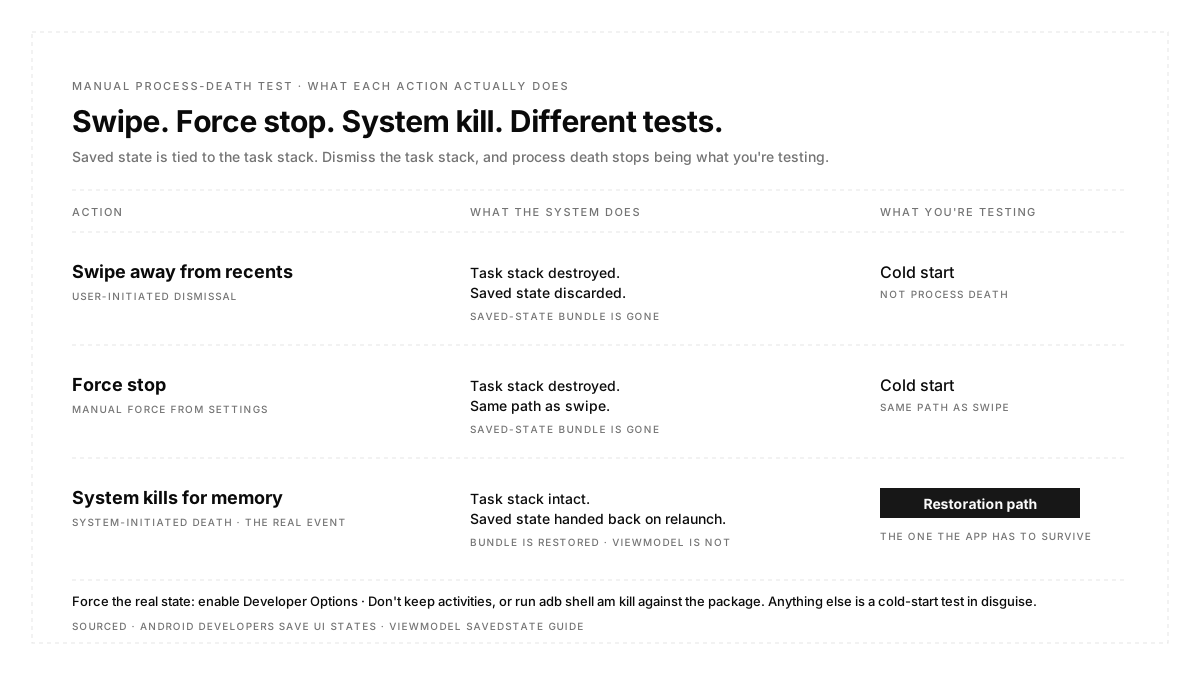
The saved state is tied to the task stack. When the task stack goes away, the saved state goes with it. Android's own guidance is explicit that this happens when forcefully stopping an app, removing the app from the recents menu, or rebooting the device, and that in user-initiated dismissal scenarios saved state is not restored, whereas in system-initiated scenarios it is.
So the two paths diverge completely:
| Action | What the System Does | What You Are Testing |
|---|---|---|
| Swipe Away from Recents | Task stack destroyed, saved state discarded | Cold start from scratch |
| Force Stop | Same as above | Cold start from scratch |
| System Kills for Memory | Task stack intact, saved state restored | Restoration path |
Swiping from recent tests that your app starts cleanly, which is worth testing and is not what anyone means by "does it survive process death." The restoration path, where the system hands your app a bundle back and expects it to reconstitute, is the one carrying the bugs, and it is the one that swiping never exercises.
The distinction has a corollary worth knowing. A user who deliberately dismisses your app expects to start fresh, so losing the transient state there is reasonable. A user who left for four minutes expects to find things where they left them. Those are different user expectations, and only one of them is a defect.
How to actually force it
Enable Don't Keep Activities. In Developer Options under the Apps section, this destroys every activity as soon as you leave it. It is more aggressive than reality, since real process death is occasional and this is constant, and that aggressiveness is the point for a test pass. Pair it with a low background process limit to make the process itself more likely to die rather than just the activity.
Kill the process directly. Running an adb kill command against the package simulates the system reclaiming your process without destroying the task stack, which is the closest reproduction of the real event.
Know what the aggressive option still misses. Don't keep activities, exercise, or recreation. It does not fully cover the case where the application object itself is destroyed and the system then restores the task on relaunch, which is a distinct scenario and one where state held on the application object disappears while the framework behaves as though nothing happened.
Check what the framework will not do for you. Views without an assigned id are not tracked, and their state is not restored, so a screen can be correctly implemented in every other respect and still lose input. And a ViewModel does not survive system-initiated process death even though it survives configuration changes, so a screen that passes a rotation test can fail the eviction test for reasons that look identical from the outside.
That last pair is why this belongs to a tester rather than only to a developer. Rotation and eviction look the same from the interface and are different underneath, and a manual pass that only rotates the device will report the eviction path as working.
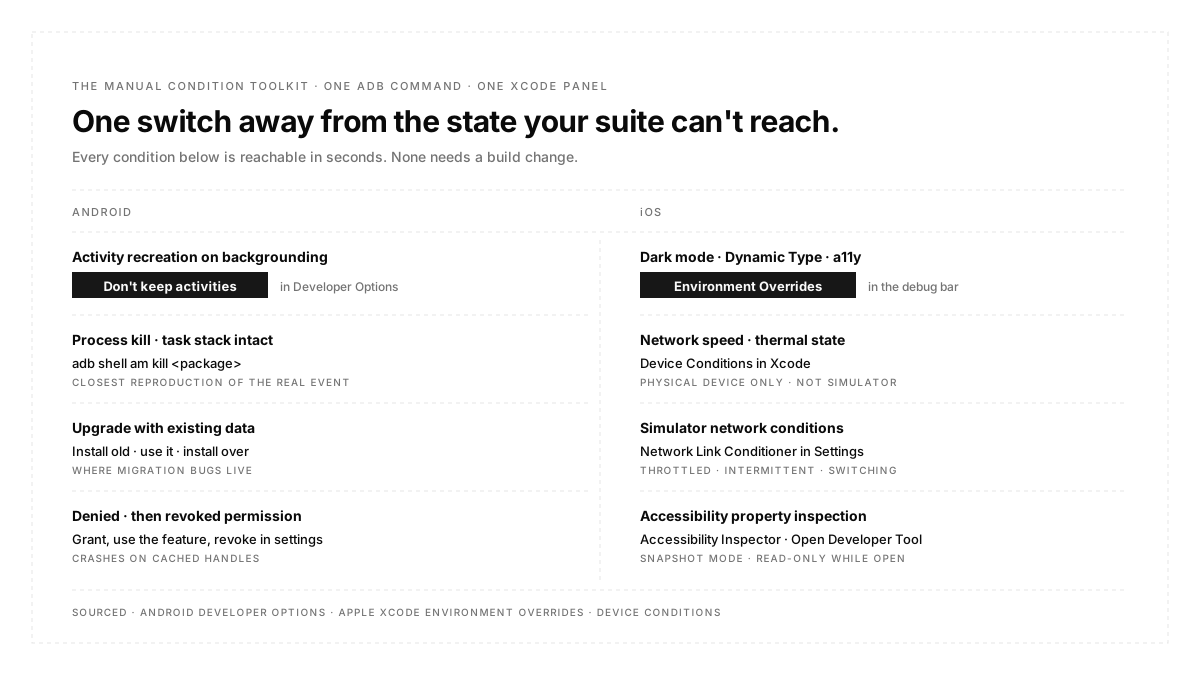
The Android condition toolkit
Everything here is reachable in seconds; none of it needs a build change.
| Condition to Force | How |
|---|---|
| Activity Destruction on Backgrounding | Developer Options, Don't keep activities |
| Process Kill with Task Stack Intact | adb shell am kill against the package |
| Fresh Install Path | Uninstall and reinstall rather than overwrite |
| Upgrade Path with Existing Data | Install the previous version, use it, then install over it |
| Increased Text Size | Accessibility settings, or adb settings put system font_scale |
| Permission Denied and Revoked | Deny at the prompt, and revoke in app settings after granting |
| Animation Timing Differences | Developer Options, animator duration scale |
| Constrained Memory | Background process limit set to a low value |
Two of these deserve emphasis because they are chronically skipped.
The upgrade path. Fresh install is the easy case and the one everybody tests, because it is what you get on a clean device. Installing over a previous version with real data in it is where migration bugs live, and those bugs reach every existing user simultaneously while never touching a new one. Test the version transition your users will actually perform.
Revoked permission, not just denied. Denying at the prompt is one state. Granting, using the feature, then revoking in system settings and returning to the app is a different state, and it is the one that produces crashes, because the app has already cached a handle to something it no longer has rights to.
The iOS condition toolkit
Xcode's equivalent is more centralized and less known.
| Condition to Force | How |
|---|---|
| Dark Mode, Dynamic Type, Accessibility Settings | Environment Overrides, in the debug bar |
| Network Speed and Thermal State | Device Conditions, on real hardware |
| Network Conditions on Simulator | Network Link Conditioner in Settings |
| Appearance from the Terminal | simctl appearance command |
| Accessibility Property Inspection | Accessibility Inspector, under Open Developer Tool |
Environment Overrides is the one worth adopting immediately. It appears in the debug bar while the app is running and changes interface style, dynamic text size, and a range of accessibility options on the fly, applying to your app rather than to the whole simulator. Being able to walk a flow at the largest text size and switch appearance mid-session, without rebuilding or restarting, changes how much of this actually gets tested.
Device Conditions is the complement and has a limitation worth knowing: network link and thermal state conditions apply to a connected physical device, not to the simulator. Thermal state in particular is difficult to reproduce any other way and is exactly the condition under which a phone in a car mounted on a summer afternoon starts behaving differently from the one on your desk.
Note that Accessibility Inspector takes a snapshot when opened, so you can inspect elements and their accessibility properties but cannot interact with the app in that mode.
Exploratory testing that produces something
Unstructured exploration produces a feeling that things are fine. Structure it lightly, and it produces findings.
Give each session a charter, meaning one sentence stating what you are exploring and what risk you are chasing. "Explore checkout under interrupted network conditions to find states the app cannot recover from" is a charter. " Test checkout" is not, because it has no way to end.
Time-box it. Sixty to ninety minutes is long enough to get somewhere and short enough that attention holds. Take notes as you go rather than reconstructing afterwards, because the detail that turns out to matter is never the one you expected to matter.
Record device, OS version, build, and the settings you changed with every finding. A manual finding without that context is frequently unreproducible, which converts a real defect into a disagreement about whether it happened. If the automated side of your testing already captures per-run context, issue records tied to the point in the run they came from give you the same discipline for free on that half.
Debrief at the end and decide what becomes an automated test. An exploratory session that finds a defect and does not produce a regression test has found the same defect you will find again next quarter.
What stays manual permanently?
Comprehension. Whether a person can work out what to do. No assertion catches confusion.
First impressions. They happen once per person and cannot be re-run by the same tester twice, which is why they are worth harvesting deliberately.
Physical interaction. Whether the primary action is reachable with one thumb, whether it sits under the keyboard, or whether a grip or a case interferes. Invisible in a screen recording, obvious when watching hands.
Novel exploration. Looking for the failure nobody wrote a test for, which is by definition the failure no test covers.
What should stop being manual?
Re-running the same login flow every release. Checking the same twenty screens render on six devices. Verifying a bug fix that has a reproducible path. All of that is repetitive with an objective expected outcome, which is the exact profile automation exists for, and doing it by hand consumes the attention the four categories above actually need.
The practical split is that automation owns confirmation and humans own discovery. Autosana handles the confirmation half by writing tests as natural-language flows run against builds on real devices, with hooks putting the app into a required state before a flow starts rather than clicking there. What it does not do, and what nothing does, is notice that a screen is confusing.
Best practices
Run a process death pass every release, and force it properly. Don't keep activities on; walk the primary journeys and verify state returns.
Keep a written condition checklist rather than relying on memory. Denied permission, revoked permission, no network, slow network, airplane mode toggled mid-request, largest font scale, dark mode, upgrade install, interrupted by a call.
Test on the oldest device you support, not the newest one you own. Timing bugs surface under constraint and hide on fast hardware.
Log the environment with every finding. Device, OS, build, and any setting you changed.
Convert findings into automated tests. A defect found manually and not automated will be found manually again.
Conclusion
The value of manual mobile testing is not human eyes on the interface, which automation covers faster and more consistently. It is a human ability to put the device into a state the suite cannot create and then judge whether what happened was acceptable. Process death is the clearest example, and it is also the clearest example of the work being done wrong, because swiping an app from recents discards the saved state and therefore tests a cold start rather than a restoration. Force the state properly, keep a written list of the conditions worth forcing, and spend the freed attention on the questions, no assertion answers.
FAQ
Is manual testing still necessary if we have good automation?
Yes, for a narrower set of things. Automation covers repetitive verification with objective outcomes. It cannot judge comprehension, cannot notice what nobody thought to assert, and cannot evaluate physical interaction with a device.
How do I test process death correctly on Android?
Enable Don't Keep Activities in Developer Options, or kill the process with adb while leaving the task stack intact. Do not swipe the app from recents, since that destroys the task stack and discards saved state, which tests a cold start rather than the restoration path.
Why does swiping from recents not count?
Because the saved state is tied to the task stack. Removing the app from recents removes the task stack, so there is nothing to restore. Android treats user-initiated dismissal and system-initiated death differently by design.
Does a ViewModel survive process death?
No. ViewModels survive configuration changes such as rotation but are destroyed when the system kills the process. That is why a screen can pass a rotation test and fail an eviction test while looking identical from the outside.
What conditions should a manual pass always include?
Denied and revoked permissions, no network and slow network, airplane mode toggled mid-request, largest supported font scale, dark mode, upgrade over a previous version, and an interruption such as an incoming call.
How long should an exploratory session be?
Sixty to ninety minutes against a written charter. Longer sessions lose focus, and shorter ones rarely reach the interesting states.
What is the difference between exploratory and ad hoc testing?
Exploratory testing has a charter, a time box, notes, and a debrief. Ad hoc testing is the same activity without those, which makes it unrepeatable and hard to act on.
Should manual testers write automated tests?
They should at least decide which findings become automated tests. A defect discovered manually and never automated will recur, and the exploratory session that found it will be spent finding it again.